Home

Pricing

Blog

Free image tools

Free · In-browser processing

Remove BackgroundTransparent PNG in seconds.Image ConverterSwitch between image formats.PDF to ImageTurn PDF pages into JPG, PNG and more.Image to PDFCombine images into one PDF.Compress PDFMake a PDF smaller, down to a target size.Passport PhotoPassport and ID photos in the right size, ready to print.Compress ImageSmaller files, crisp images.Resize ImageExact sizes for any platform.Crop ImageFrame your image just right.AI UpscalerEnlarge images up to 4×.

Free video tools

Free · In-browser processing

Compress VideoShrink a video to a set file size, in your browser.

Pro tools

Server AI · Uses credits

AI Background Remover HDPrecise hair and fine edges.HD Image ConverterUpscale and convert in HD.AI Image EnhancerEnhance detail with advanced AI.
View all tools
PixVibe
Home

Free image tools

Free · In-browser processing

Remove BackgroundTransparent PNG in seconds.Image ConverterSwitch between image formats.PDF to ImageTurn PDF pages into JPG, PNG and more.Image to PDFCombine images into one PDF.Compress PDFMake a PDF smaller, down to a target size.Passport PhotoPassport and ID photos in the right size, ready to print.Compress ImageSmaller files, crisp images.Resize ImageExact sizes for any platform.Crop ImageFrame your image just right.AI UpscalerEnlarge images up to 4×.

Free video tools

Free · In-browser processing

Compress VideoShrink a video to a set file size, in your browser.

Pro tools

Server AI · Uses credits

AI Background Remover HDPrecise hair and fine edges.HD Image ConverterUpscale and convert in HD.AI Image EnhancerEnhance detail with advanced AI.
View all tools
PricingBlog
PixVibe

Free AI image tools — remove backgrounds, convert, compress, resize & upscale in seconds.

Product

Remove BackgroundImage ConverterPDF to ImageImage to PDFCompress PDFPassport PhotoCompress ImageResize ImageCrop ImageAI UpscalerCompress VideoPricing

Pro tools

AI Background Remover HDHD Image ConverterAI Image Enhancer

Resources

ToolsBlogFor AI agentsHow we keep files localAI Font Prompts

Legal

Terms of ServicePrivacy PolicyLegalThird-party licensesContact

© 2026 PixVibe. All rights reserved.A Funovate Technology product

Notifications

No notifications yet

We'll let you know when something important happens.

HomeToolsRemove BackgroundMake Logo Transparent
Local AI · no upload›Websites›Logos & icons›PNG›Online sellers›

Make Logo Transparent

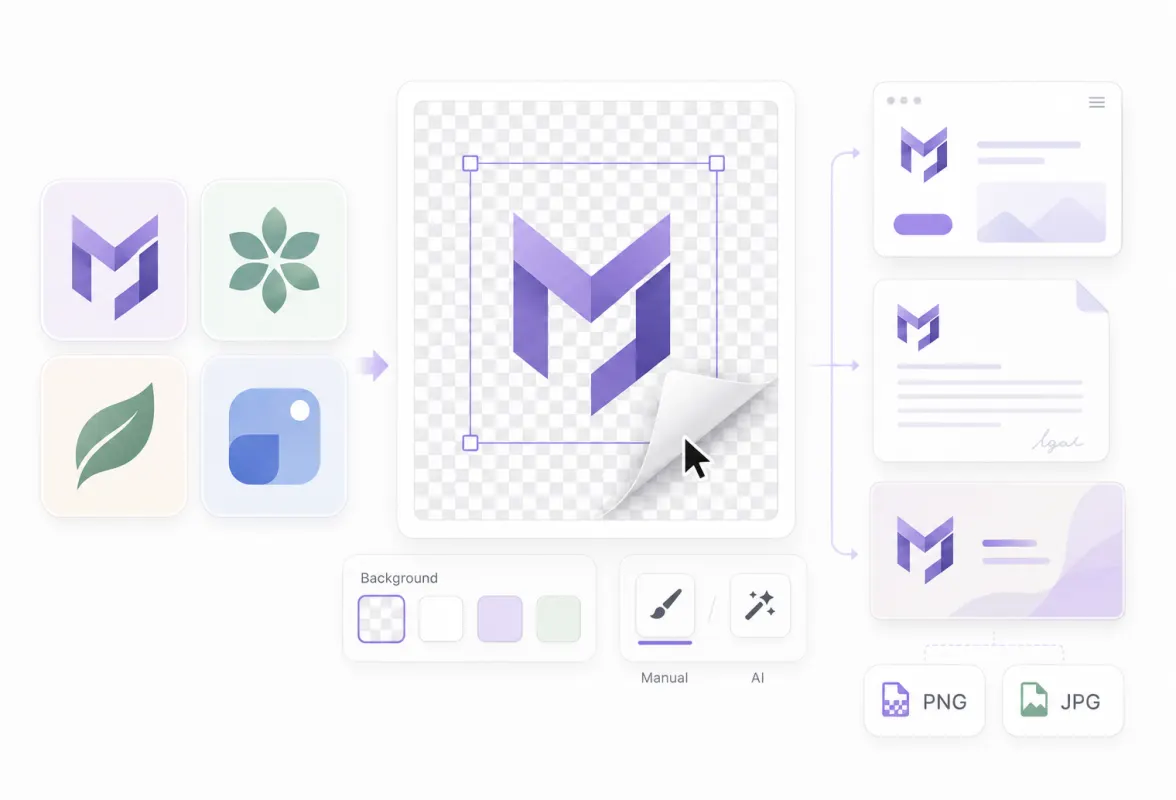
Make logo transparent without opening a design app: drop in the file and this page removes the backdrop, then crops the result to the logo with a small margin, ready for a website header, a slide or a document. A logo is not a photo, though. Small lettering, hairline strokes and the holes inside letters like O and A are exactly where background removal slips, so we ran six test logos through every quality setting and show below which details each one kept. The cutout is computed locally, and the file never leaves this device unless you choose Cloud refine.

WHY USE IT

What this page sets up for a logo

Transparent PNG, cropped to the mark

The page opens with Transparent selected under Background and Crop to subject under Framing, so the empty canvas around the logo is cut away and a margin of 5% of the logo's longer side is left on each side.

Three models to compare

Standard runs IS-Net, High quality runs BiRefNet and Ultra detail runs BEN2. Each run is kept as its own version, so you can flip between them and download the one that kept your lettering intact.

Erase and Restore by hand

Touch up opens a brush with Erase for leftover background, such as the inside of a letter, and Restore for a stroke the AI removed by mistake.

Runs in your browser

All three models run on your device, and the logo is not uploaded. Cloud refine is a separate button: it sends the image to our servers for a third-party AI service, uses credits, and only runs if you click it.

HOW IT WORKS

How to make a logo transparent

01

Add the logo file

Drop JPG, PNG, WebP, HEIC, AVIF, TIFF, BMP, or TGA, up to 100MB. The cutout starts by itself, with Transparent and Crop to subject already selected. On a computer whose graphics card passes the tool's check, that first run uses Ultra detail, so treat it as one version to compare, not the final answer.

02

Compare the quality settings

Pick Standard, High quality or Ultra detail and click Remove again. Every run becomes a new version; zoom in on small text, thin lines and the holes in letters before choosing.

03

Fix what's left and save

Use Touch up for any spot the AI got wrong, then pick Download PNG. The file is saved as your file name plus -no-bg.png.

Which logo background remover setting keeps small text and thin lines

No logo background remover setting won on every logo in our test, so treat the choice as something to check, not a fixed rule. The names are not a ranking for logos either. Ultra detail runs BEN2, which adds an edge-refinement step meant for hair and fine edges, and on our flat logos it lost the most: it kept 2.3% of a small tagline, 44% of a line of small text and 73% of the 1 px lines. High quality was the only setting that kept every element of the icon-plus-tagline logo, yet it dropped a small star from our own logo. Standard kept 1 px lines and small text best, but on the icon logo it erased the tagline and an orange square inside the ring, and on the gradient logo it left the gradient showing through the letters.

The holes inside letters split the settings less than their names suggest. High quality and Ultra detail both cleared at least 95% of those pixels on every logo. Standard did too, except on the gradient logo, where it cleared 0.5%.

The tool does not overwrite earlier results: switching the quality and clicking Remove again adds a version, so comparing all three takes well under a minute per logo. On a Mac mini in Chrome, with the models already downloaded, the first run of each setting in a new tab took about 1.5 to 3 seconds on Standard, 10 to 12 on High quality and 7 to 27 on Ultra detail. The next logo in the same tab was quicker: about 3 seconds on High quality.
Make logo transparent on a phone or a computer: why results differ

On a computer all three settings can run, so you can try each one and compare. The first run is picked for you: on a computer whose graphics card passes the tool's check it is Ultra detail, the setting that lost the most detail on five of our six logos, so don't stop at the first result. Phones and tablets start on Standard. On iPhone and iPad, High quality and Ultra detail cannot run in the browser at all, so Standard is the only setting that runs there; the page offers Cloud refine instead. When an AI agent opens this tool through PixVibe's agent interface, it also starts on Standard unless the link asks for another setting with quality=high or quality=ultra.

Neither starting point is the better one for logos. On the icon-plus-tagline logo, the phone default (Standard) and the computer default (Ultra detail) both lost the tagline, and only High quality kept it. So the advice is the same on any device: open every version you can run and compare before you download.

If your logo is already a transparent PNG, check before you rerun it

The PNG format can store opacity for every pixel. The W3C Portable Network Graphics (PNG) Specification (Third Edition) puts it this way: "The alpha sample determines a pixel's degree of opacity, where zero means fully transparent and the maximum value means fully opaque." A logo saved like that does not need its background removed.

Running one through anyway can damage it. The tool keeps areas that were already transparent transparent, but it can still cut away parts that were opaque. Whatever color a PNG stores under its see-through pixels, the browser hands them to the model as black: we saved our logo again with white there and got exactly the same result. The model therefore sees our dark wordmark on black, which is a likely reason Ultra detail kept only 48% of the logo; High quality dropped the small star, and Standard changed 0.04% of the pixels. If your computer starts on Ultra detail, the first run has already used it, so if you only need a tighter crop, switch to Standard, click Remove again and download that version.

Checking a white logo you can't see

A white or very light logo is almost invisible on the gray-and-white checkerboard that stands for transparency. To check it, click Black under Background: the preview repaints at once, without cutting the logo out again, and gaps or rough edges become obvious. Switch back to Transparent before you download, otherwise the PNG keeps the black fill.

The same trick helps with any logo meant for dark pages. Choosing JPG under Download gives a white fill instead of transparency, because JPG files cannot store it.

How we measured the six logos

We ran the test on November 14, 2026, on a Mac mini in Chrome, one logo at a time. Five test logos were drawn for the test, so each comes with an exact mask of its own pixels; the sixth is our own logo file, whose mask is its original transparency.

Logo kept is the share of the logo's own pixels that came out more than half opaque (alpha above 128 of 255). It only counts what stayed, not what was removed. Background that stayed behind shows up in letter holes cleared, the share of pixels inside letters and rings that came out almost fully transparent (alpha 32 or less), and in the notes.

OUR TEST

Our test: six logos, three quality settings

Test logo (1200 × 480 px unless noted)Logo kept, then letter holes cleared (%): Standard · High quality · Ultra detailWhat we saw
Black wordmark BOARD on white, JPGKept 98.3 · 98.1 · 96.8. Holes 98.5 · 98.9 · 99.3The holes in B, O, A, R and D were cleared on all three settings. No light fringe at the edges.
Ring icon, wordmark and a small tagline below, PNGKept 83.9 · 97.7 · 90.0. Holes 97.9 · 96.4 · 98.1Standard erased the orange square inside the ring and the tagline; Ultra detail kept 2.3% of the tagline. Only High quality kept every element (icon, wordmark, tagline).
Outline icons with 1 px and 2 px lines, small text, PNGKept 95.7 · 91.4 · 74.8. Holes 98.3 · 98.2 · 97.71 px lines kept: 100% · 98.9% · 72.8%. The small text kept 86.8% · 84.5% · 44.0%.
White logo NOVA on dark navy, PNGKept 98.6 · 97.6 · 94.7. Holes 98.5 · 99.0 · 99.2Clean on all three. On the checkerboard preview the white logo is hard to see; switching Background to Black makes it visible.
Colored logo on a purple-to-pink gradient, PNGKept 99.1 · 97.7 · 83.2. Holes 0.5 · 99.0 · 99.7Standard left the gradient showing inside the letters. High quality and Ultra detail cleared it.
Our own PixVibe logo, already a transparent PNG (1034 × 240 px)Kept 99.9 · 93.5 · 48.3. Holes 95.1 · 95.1 · 100Ultra detail erased most of the dark wordmark; High quality dropped the small star. Counted over every pixel in the image rather than the logo alone, Standard changed 0.04%, High quality 1.79% and Ultra detail 17.75%.
WHAT IT'S FOR

Where a transparent logo gets used

Website header and footer

Website header and footer

A logo exported on a white square shows as a white box on a dark or colored header. A transparent PNG sits on any background color the theme uses.

Slides, letterheads and invoices

Slides, letterheads and invoices

Placed on a tinted slide or over a photo, the transparent version shows only the mark, and the tight crop means you scale the logo rather than its empty border.

Merch mockups and partner pages

Merch mockups and partner pages

Event sponsors, marketplaces and partner directories often ask for a transparent PNG. Producing one from the JPG you already have saves a trip back to the designer.

FAQ

Transparent logo questions

Drop the logo into the tool on this page. It removes the background on your device, crops to the logo and gives you a PNG under Download. Single images need no account; with a free account you can do up to 20 at once.

It depends on the logo, so run two or three and compare. In our six-logo test, High quality was the only setting that kept the tagline on our icon-plus-tagline logo, but it dropped a small star from another. Standard kept 1 px lines and small text best on the outline-icon logo, but erased that tagline. Ultra detail lost the most detail on five of the six.

Try High quality or Ultra detail first: both cleared at least 95% of the letter holes on all six logos, including the gradient logo where Standard cleared 0.5%. On iPhone and iPad those two settings don't run in the browser, so open Touch up there and paint over the spot with Erase; that also fixes a leftover spot on any device.

The crop itself did not cut it off: on High quality, where the tagline survived background removal, it stayed inside the crop. On Standard and Ultra detail the tagline was erased by the background removal, not by the crop. When it measures the logo, the crop ignores separate pieces whose area is under 5% of the largest shape's area, so a tiny mark such as a ™ standing apart from the rest could be cut off; check for it before you download.

No. The tool takes JPG, PNG, WebP, HEIC, AVIF, TIFF, BMP, or TGA, not SVG, and saves PNG or JPG. Export the SVG to a large PNG first; the transparent result is a bitmap, not vector paths.

On a computer, yes: the cutout has the same pixel size as your file, and Crop to subject only trims the empty canvas around the logo. On phones and tablets, an image longer than 2,048 px on its long side is scaled down to 2,048 px.

You can download a JPG, but JPG cannot store transparency, so the background is filled with white. For a logo you will place on colored backgrounds, keep the PNG.

Not unless you choose Cloud refine. Removing the background, cropping and Touch up all run in your browser. Cloud refine sends the image to our servers, where a third-party AI service processes it; it uses credits, and the image is deleted from our servers within 24 hours.

RELATED

You might also need

Make background whiteChange background color

Related articles

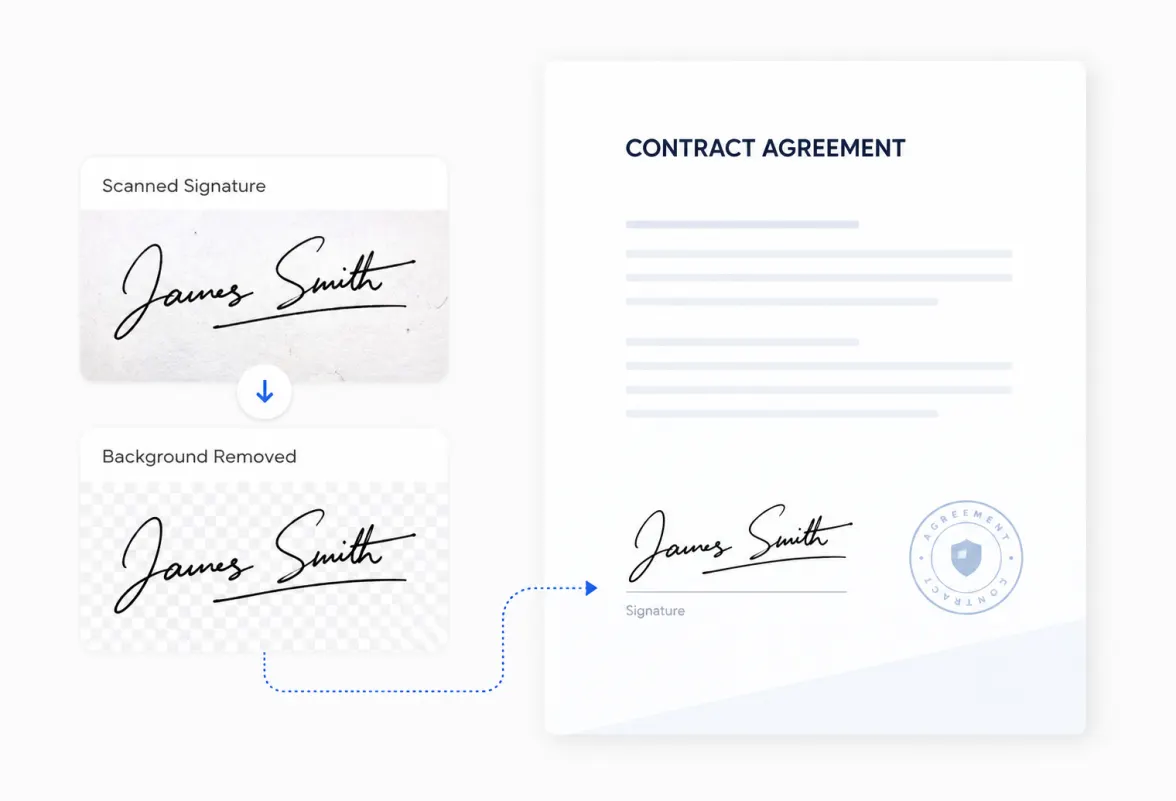
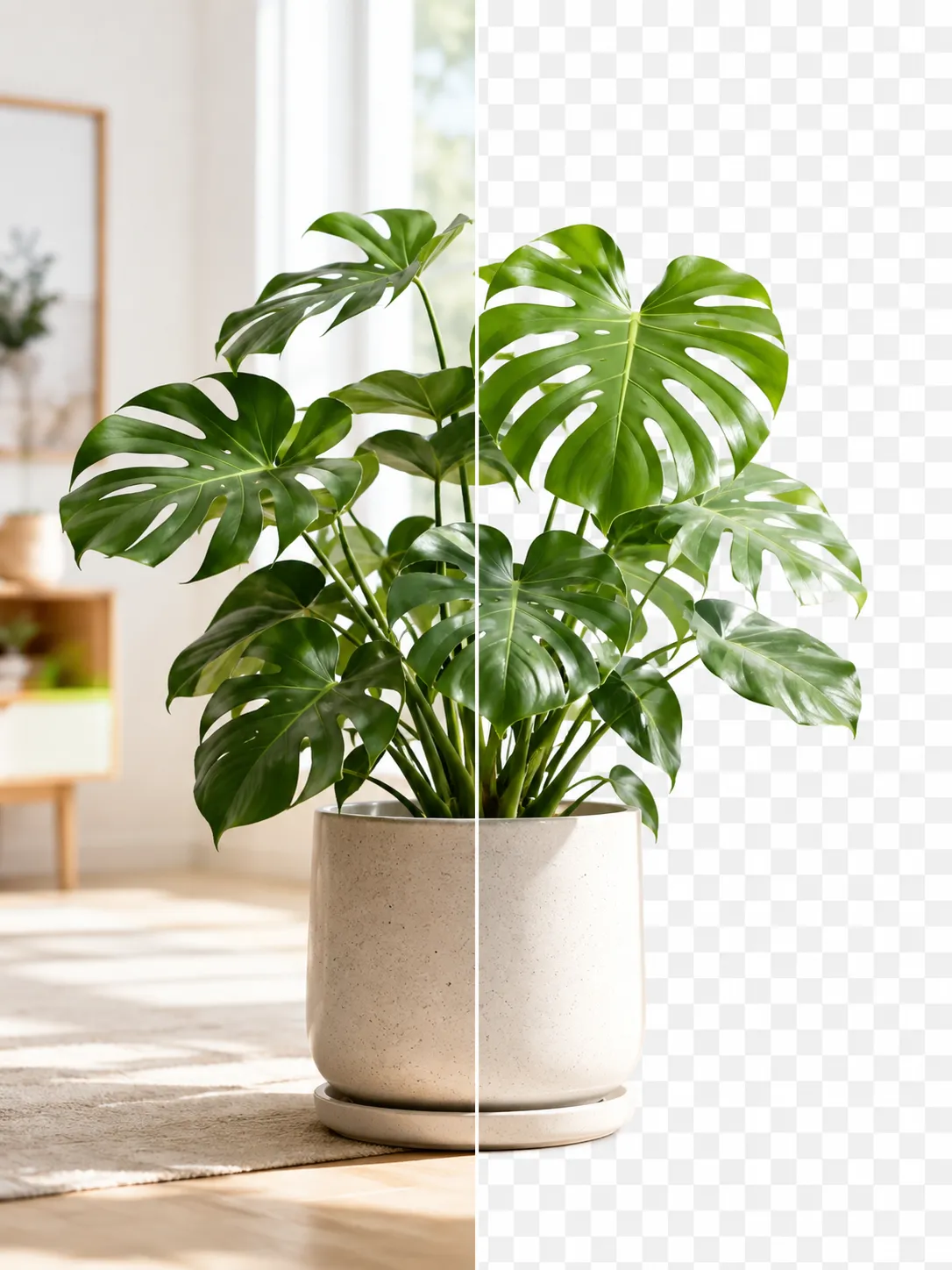
A product photo shown before and after background removal
Guide

How to Remove an Image Background for Free (No Signup)

Get a clean transparent cut-out in seconds in your browser — no watermark, no account. The fastest free method, plus tips for tricky edges.

Read article
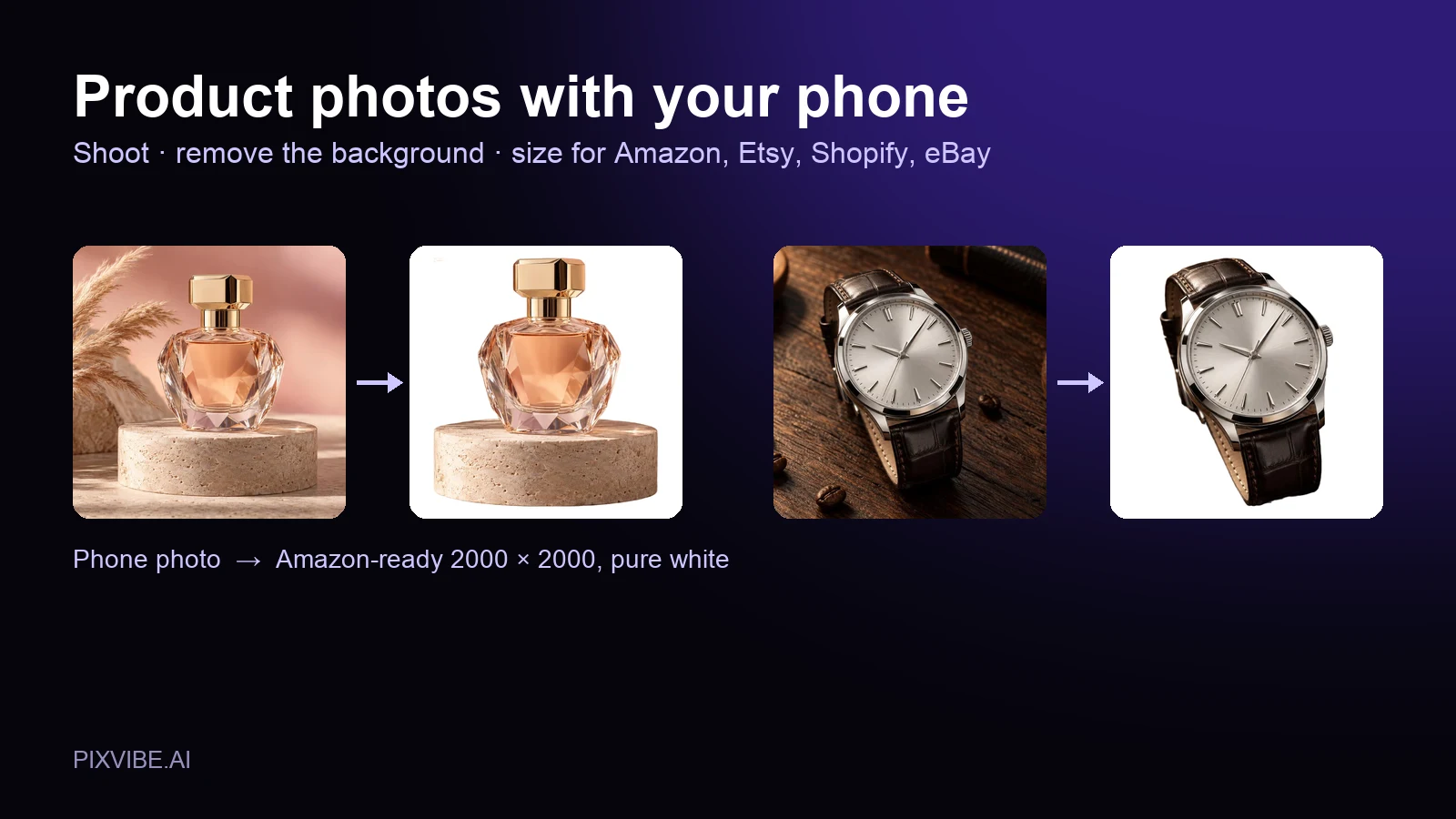
A perfume bottle and a watch photographed on a phone, each turned into a 2000 × 2000 product photo on a pure white background
Guide

Product Photos With Your Phone: Amazon, Etsy & Shopify Sizes

Shoot product photos on a phone, remove the background, and size them for Amazon, Etsy, Shopify and eBay. Official rules in one table.

Read article
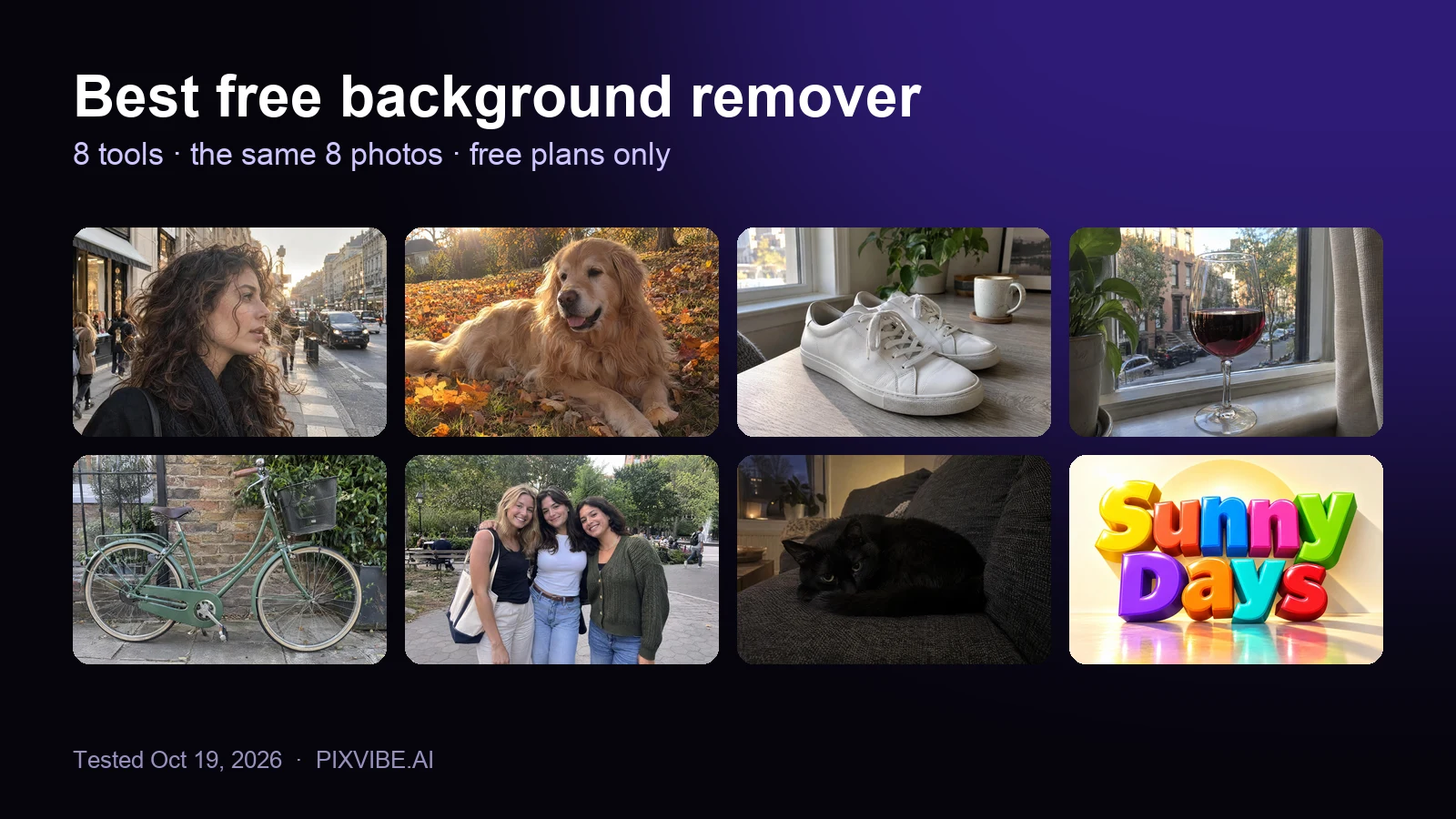
The eight test photos used to compare free background removers: curly hair, a golden retriever, sneakers, a wine glass, a bicycle, three friends, a black cat and a 3D text logo
Review

Best Free Background Remover (2026): 8 Tools Tested

I tested 8 free background removers on the same 8 photos. Scores, free download sizes, batch limits and which ones upload your photo.

Read article
MORE TOOLS

Explore more tools

Free image tools

Free · In-browser processing

Remove BackgroundRemove BackgroundMake any image transparent — free PNG.Image ConverterImage ConverterHEIC to JPG, WebP to PNG, JPG to WebP & more.PDF to ImagePDF to ImageTurn PDF pages into JPG, PNG or WebP images — pick pages and DPI.Image to PDFImage to PDFCombine JPG, PNG or HEIC photos into one PDF — A4, Letter or fit.Compress PDFCompress PDFShrink scanned and image-heavy PDFs, keep selectable text, or hit a target size in KB.Passport PhotoPassport PhotoFrame your face to passport, visa or ID sizes, change the background and print several on one sheet.Compress ImageCompress ImageReduce image size, keep the quality.Resize ImageResize ImageResize for YouTube thumbnails & any size.Crop ImageCrop ImageCrop and reframe with precision.AI UpscalerAI UpscalerAI upscale image resolution up to 4×.

Free video tools

Free · In-browser processing

Compress VideoCompress VideoShrink a video to a set file size, in your browser.

Pro tools

Server AI · Uses credits

AI Background Remover HDAI Background Remover HDHigh-precision edges for hair, fur and fine detail.HD Image ConverterHD Image ConverterAI upscale, then convert to high-res WebP, PNG or JPG.AI Image EnhancerAI Image EnhancerEnhance and upscale photos with multiple AI models.
All Remove Background optionsUse this tool with an AI agent

Tags on this page

Media
Image›
Pricing
Free›
Runs on
Local AI · no upload›
Task
Remove background›
Format
PNG›JPG›
Platform
Websites›Print›
Use case
Logos & icons›Documents & scans›
For
Online sellers›Office & students›Designers›
Feature
Transparent background›Trim whitespace›Brush touch-up›Batch processing›No upload›
AI model
IS-NetBiRefNetBEN2