Lighter images on a website
A PNG hero image or screenshot can shrink to a fraction of its size as AVIF: our 3200 × 2400 screenshot went from 1.29 MB to 68.3 KB on Compact. Check first that your site builder or CMS accepts .avif uploads.
PNG to AVIF turns screenshots, logos and photos saved as PNG into far smaller AVIF files, and PixVibe does it in your browser without uploading anything. Transparency carries over. The tool starts on Compact, which cut six of our seven test PNGs by 82–96%. Before you convert, know that every AVIF made here is lossy, even on Quality; that colored edges in screenshots lose some color on every mode; that a small PNG with few colors can come out larger; and that AVIF takes many seconds per image to encode, not a blink.
On Compact, the mode this page starts on, six of our seven test PNGs (screenshots, a photo and transparent icons) came out 82–96% smaller. Fast and Quality keep more detail; on the same six files they still saved 65–90%.
PNG transparency is written into the AVIF as an alpha channel. On Quality, every fully transparent pixel of our 2068 × 480 test logo stayed fully transparent, and no alpha value changed by more than 2 on the 0–255 scale. Compact lets alpha drift a little more.
Browsers cannot save AVIF on their own, so all three modes use the same AVIF encoder, running in the background on your device. The only difference between Compact, Fast and Quality is the quality setting: 58, 90 and 95. The slider can set any value from 10 to 100.
No account is needed for a single PNG. Sign in free and the limit rises to 20 per batch: press “Convert all”, then save every AVIF in one ZIP. On a Mac mini, a batch of 20 PNGs of 12 megapixels each took about 8½ minutes on Compact.
| Test PNG | PNG | Compact | Quality |
|---|---|---|---|
| Photo | 2.58 MB | 205 KB (−92%) | 409 KB (−84%) |
| Desktop screenshot | 1.29 MB | 68.3 KB (−95%) | 291 KB (−77%) |
| Phone screenshot | 371 KB | 36.3 KB (−90%) | 105 KB (−72%) |
| Flat logo | 77.3 KB | 11.1 KB (−86%) | 14.8 KB (−81%) |
| 3D icon with shadow | 1.00 MB | 41.2 KB (−96%) | 153 KB (−85%) |
| Small icon | 8.7 KB | 1.5 KB (−82%) | 3.0 KB (−65%) |
| 16-color icon | 1.6 KB | 1.1 KB (−32%) | 2.0 KB (+26%) |
A PNG hero image or screenshot can shrink to a fraction of its size as AVIF: our 3200 × 2400 screenshot went from 1.29 MB to 68.3 KB on Compact. Check first that your site builder or CMS accepts .avif uploads.
Cut-outs and logos keep their transparent background as AVIF, so they still sit cleanly on any page color while taking far less space.
Screenshots saved as PNG add up quickly. As AVIF on Compact, our desktop and phone screenshots shrank by 90–95%; if you might need any of them pixel-exact later, keep its PNG original.
Choose .png files or drop them on the box. AVIF is already selected as the output and the mode is Compact; a single PNG converts right away. After signing in, the box takes up to 20 files; then press “Convert all”.
For screenshots with small text, pick Quality and press “Convert again”. Each run is kept as a separate version, so you can open “Compare with original” before you choose one.
Save one file, or all of them as a ZIP. If a version came out larger than the PNG, keep the PNG instead.
In our test, six of seven PNGs came out 82–96% smaller on Compact and 65–85% smaller on Quality; Fast landed in between, at 73–90% smaller. PixVibe converted all seven in Chrome in November 2026, on each of the three modes. The biggest gain was a 1254 × 1254 3D icon with a soft shadow: 1.00 MB as PNG, 41.2 KB as AVIF on Compact. Sizes here use 1 KB = 1,000 bytes.
The exception was a 128 × 128 icon that had already been reduced to 16 colors. PNG stores an image like that very compactly, and the AVIF was only 32% smaller on Compact, 5% larger on Fast and 26% larger on Quality. The tool does not swap the PNG back in when that happens; it gives you the larger AVIF. So for small flat icons and pixel art, check the size on the result card, and if you want such a file smaller, keep it as PNG and run it through Compress PNG.
The photo in the test was a JPG saved as PNG, which is common with edited or exported photos. If you still have the original JPG, it may already be close to the AVIF in size, so compare the two before you swap it for the AVIF.
Yes. Transparent areas of the PNG come out transparent in the AVIF, and a PNG with no transparency gets no alpha channel at all, so the file carries no extra data for it. The alpha channel is lossy too, just like the colors, so its values can shift slightly.
We checked this in Chrome in November 2026. On Quality, all 729,415 fully transparent pixels of a 2068 × 480 logo stayed fully transparent, and no alpha value changed by more than 2 on the 0–255 scale. On Compact, the largest change was 16, and 433 of those background pixels picked up a faint, practically invisible alpha. In a 1254 × 1254 3D icon with a soft shadow, which has about 800,000 semi-transparent pixels, alpha changed by at most 7 on Quality and 34 on Compact; on Quality, 4,280 of its 773,161 fully transparent pixels picked up an alpha of at most 3, too faint to see.
For logos and cut-outs placed on a web page, Quality keeps edges and shadows very close to the PNG. If the alpha channel has to stay exact, for example a mask you will edit again, keep the PNG.
No. This tool encodes every AVIF lossily, on all three modes; there is no lossless option. It also always stores color at half resolution in each direction (4:2:0 chroma subsampling), while keeping brightness at full resolution. Raising the quality to 95 reduces the overall error, but color stays at half resolution.
You can see it in screenshots. We tested a 3200 × 2400 desktop screenshot in Chrome in November 2026 and sorted its pixels into gray ones (red, green and blue within 10 of each other: the white background, gray panels and dark text) and strongly colored ones (channels 60 or more apart). On Quality the gray areas, text included, came through almost unchanged: only about 1 in 8,000 gray pixels changed by more than 16 on the 0–255 scale, and brightness never changed by more than 14 (41 on Compact). The strongly colored pixels fared worse: on Quality, 4.4% of them changed by more than 16, barely fewer than the 5.4% on Compact. On a phone screenshot whose color sits mostly in small icons and buttons, 18–19% of the strongly colored pixels changed that much, on every mode. The largest single error was 110 on Quality (111 on Fast, 107 on Compact), around dark lettering on a lime-green circle.
So for screenshots of documents, chats and code with dark text on a light background, Quality gives clean text. Where thin colored lines, colored small text or chart labels must stay crisp, compare each version with the original using “Compare with original”, or keep the PNG.
Because AVIF encoding is heavy work, and here it runs on your own device. Browsers can save PNG, JPG and WebP quickly on their own, but not AVIF, so PixVibe encodes AVIF with its own encoder in the background, one image at a time and on a single processor core. That is also why Fast is not fast for AVIF: it is the same encoder at quality 90.
PixVibe timed this in Chrome 149 on a Mac mini (Apple M4) in November 2026, using a 4032 × 3024 PNG of 16.5 MB made from nine photos. The first conversion, which starts as soon as the file is added, took about 26 seconds on Compact; converting it again took 22.0 seconds on Compact, 22.3 on Fast and 24.2 on Quality. The same PNG became a WebP on Fast in about 2.4 seconds. Time depends on the picture as well as its size: our 3200 × 2400 desktop screenshot, despite having fewer pixels, took 48–56 seconds per mode. A batch of 20 copies of the 12-megapixel PNG on Compact took 8 minutes 31 seconds, about 26 seconds per image, and turned 330 MB of PNG into 20.1 MB of AVIF. Phones and older computers will take longer; we did not time them.
The page stays usable while it works. For large batches, start the conversion and come back later; Compact is a good choice, since in our test it was as quick as any mode and made the smallest files.
Drop the .png files into PixVibe's PNG to AVIF converter above. AVIF and Compact mode are already set, a single file converts as soon as it is added, and Download saves the result.
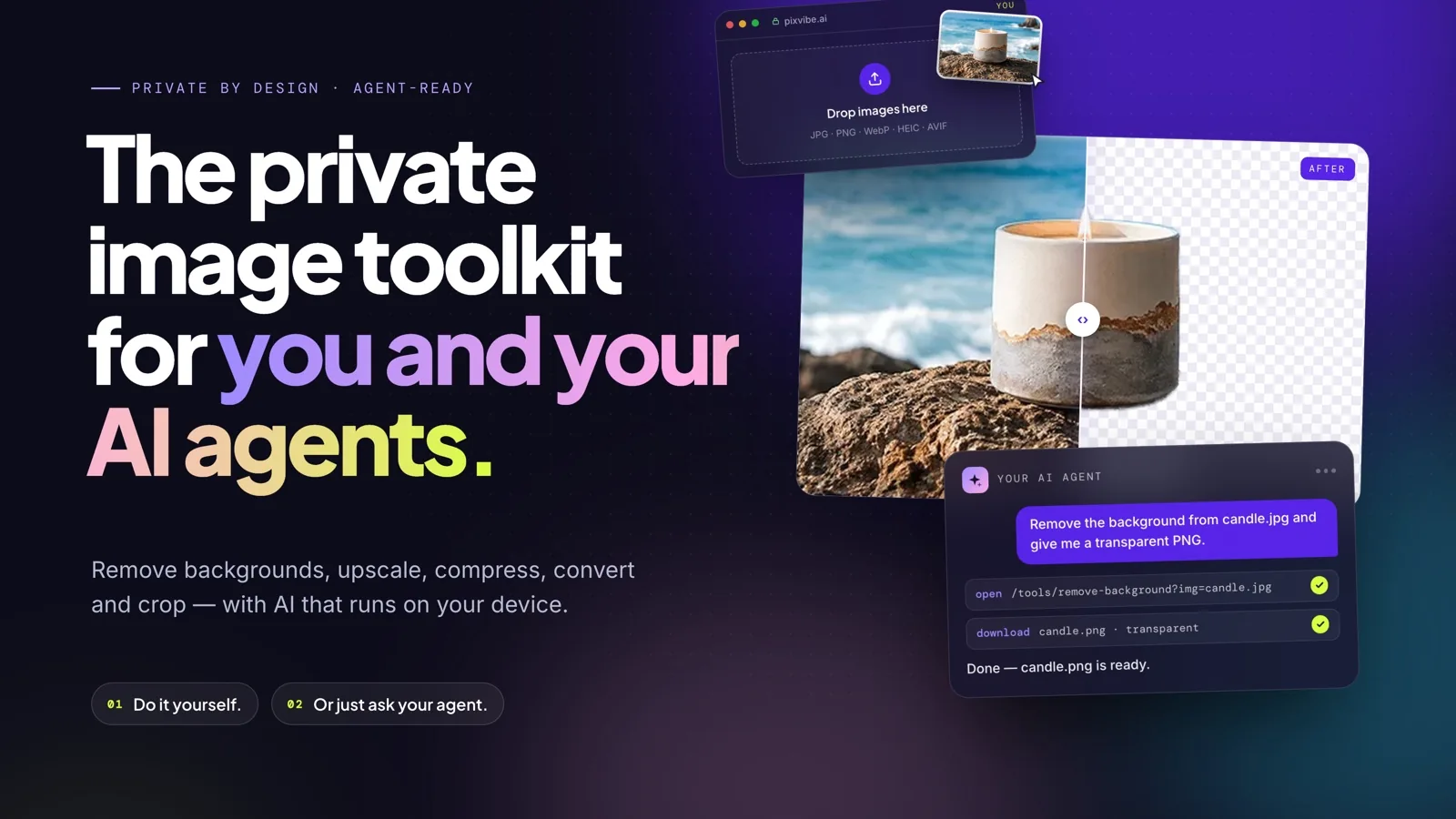
Let an AI agent edit images with PixVibe: one link per job, no API key. We tested Claude, Codex and ChatGPT agent, and show what to check.
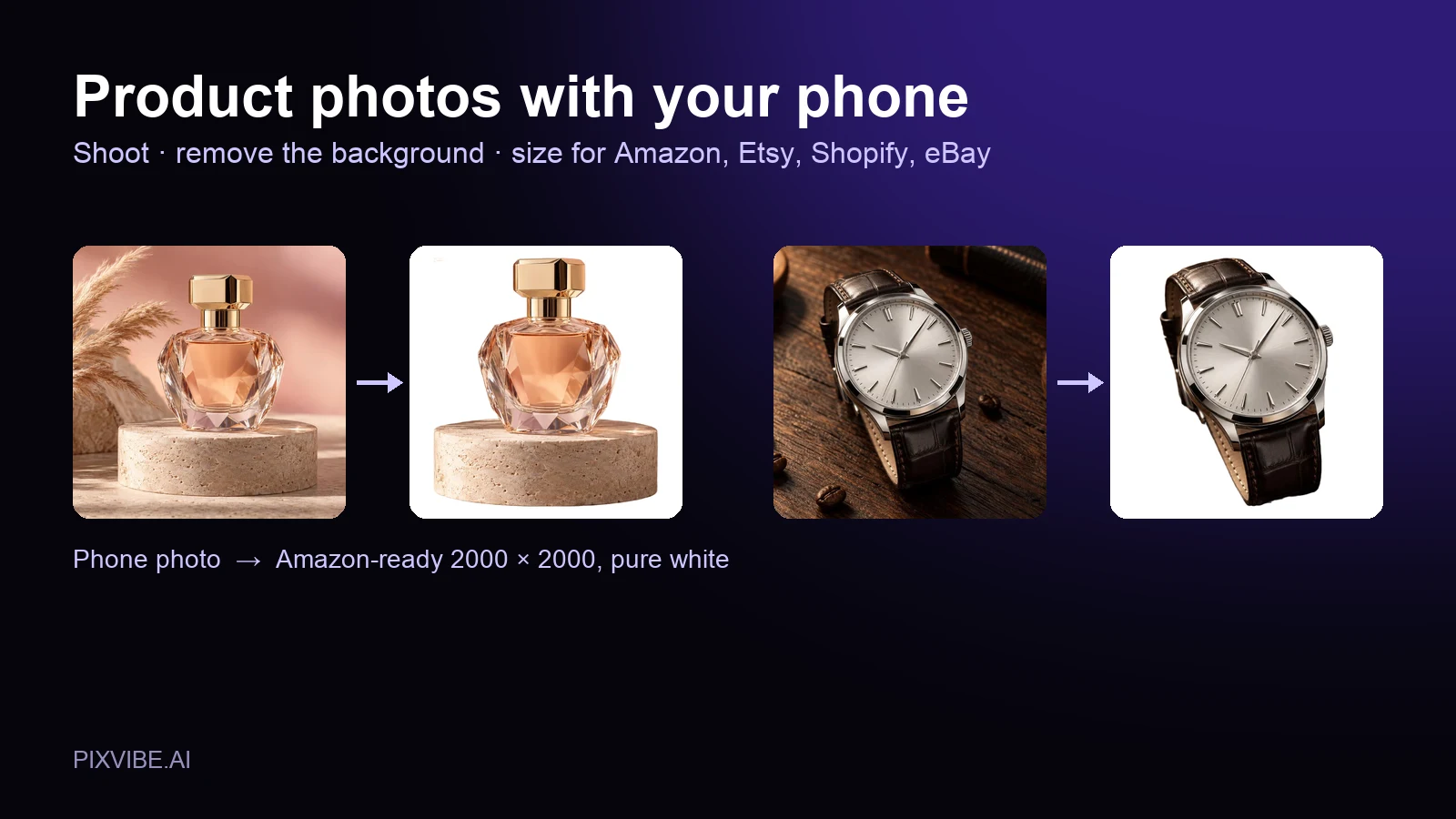
Shoot product photos on a phone, remove the background, and size them for Amazon, Etsy, Shopify and eBay. Official rules in one table.
Free · In-browser processing
 Remove BackgroundMake any image transparent — free PNG.
 Image ConverterHEIC to JPG, WebP to PNG, JPG to WebP & more.
 PDF to ImageTurn PDF pages into JPG, PNG or WebP images — pick pages and DPI.
 Image to PDFCombine JPG, PNG or HEIC photos into one PDF — A4, Letter or fit.
 Compress PDFShrink scanned and image-heavy PDFs, keep selectable text, or hit a target size in KB.
 Passport PhotoFrame your face to passport, visa or ID sizes, change the background and print several on one sheet.
 Compress ImageReduce image size, keep the quality.
 Resize ImageResize for YouTube thumbnails & any size.
 Crop ImageCrop and reframe with precision.
 AI UpscalerAI upscale image resolution up to 4×.
Free · In-browser processing
Server AI · Uses credits