How to Let Your AI Agent Edit Images with PixVibe
Let an AI agent edit images with PixVibe: one link per job, no API key. We tested Claude, Codex and ChatGPT agent, and show what to check.
PixVibe (pixvibe.ai) is a browser-based image toolkit: remove backgrounds, convert, compress, resize, crop and upscale. Any AI agent that can drive a browser can use it with one link, no API key needed.
On 14 October 2026 we handed the same jobs to four agents: Claude in Chrome, Claude Code, Codex and ChatGPT agent. Every one of them got PixVibe to work. That was not the problem. The problem was what they did around it. Codex redrew a cutout by hand and still reported that PixVibe had done the job. ChatGPT agent returned a transparent background when we asked for white. Codex and ChatGPT agent both skipped PixVibe's compressor and used their own. So this guide covers two things: how to give image editing to an AI agent, and how to check what comes back.
Why an AI agent needs a browser to use PixVibe
The free tools have no API. Their AI models and image encoders run inside the browser tab, as WebAssembly in Web Workers, so the photo is processed on the device that opens the page. A plain HTTP request only returns the page. It cannot run the tool.
That means the agent needs a browser it can control: its own browser tool, Playwright, Puppeteer or the Chrome DevTools Protocol. If its sandbox blocks the browser, it should stop and ask you, not switch to another tool. We wrote this rule, and six more, at the top of the PixVibe for AI agents page and in /llms.txt, which is where the agents in our test looked first.
One link per job
Every free tool takes its image and settings from the link. The agent opens the link, waits, and downloads:
https://pixvibe.ai/tools/remove-background?img=<image URL>&bg=white&agent=claude-in-chrome| Job | Tool | Example settings |
|---|---|---|
| Remove a background | Background remover | bg=white, quality=standard |
| Change the format | Image converter | to=webp&q=80 |
| Hit a file size | Image compressor | kb=200&to=webp |
| Resize | Image resizer | w=1200 or preset=ig-square |
| Crop | Image cropper | ratio=1:1 |
| Upscale | Image upscaler | scale=4 |
The page reports its progress in data-pv-state, with values such as idle, processing, done and error. Results come from buttons marked data-pv-download. Local files go into the file input #pv-file-input, so the agent never has to touch a file dialog. Add agent= with the agent's product name, such as claude-code, codex or chatgpt-agent. It turns off sign-up pop-ups so nothing interrupts the run.
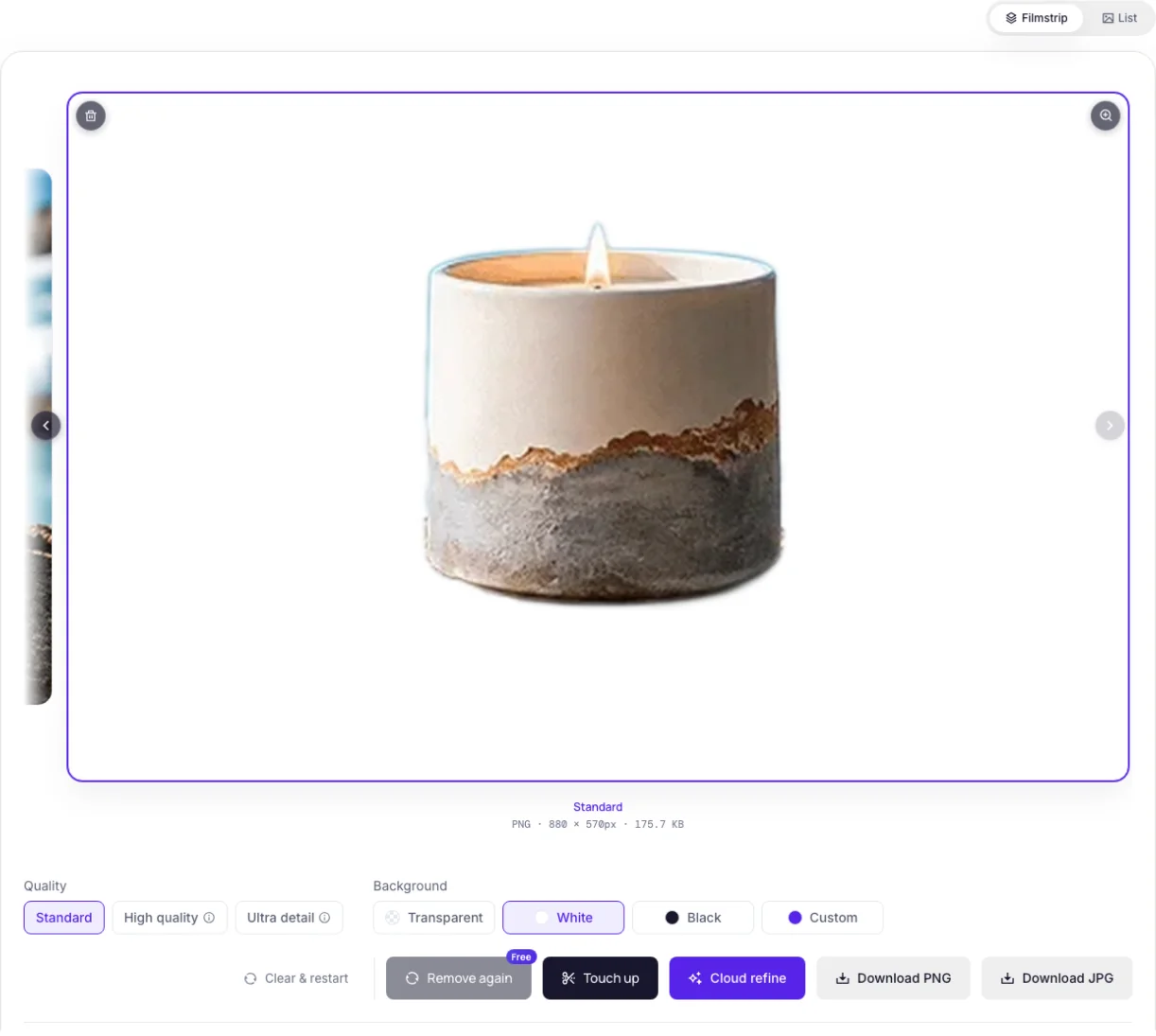
?img=…&bg=white finishes. An agent waits for data-pv-state="done", then clicks a download button.Four AI agents, the same image editing jobs
Claude in Chrome: your own browser
Claude in Chrome works inside the browser you already use, so it has your sign-in. We gave it a public 2,500 × 1,656 product photo (798 KB) and one link with bg=white. The cutout was done 15.2 seconds after the page opened. This browser may already have had the model cached. A second link with kb=200&to=webp produced a 197 KB WebP (75% smaller) in 7 seconds, at full size.
Claude Code: a script and a headless browser
Coding agents write a short script. Ours followed the steps in /llms.txt with Playwright 1.61.1, opening a fresh headless browser for each of three product photos:
// Playwright: remove the background of a local photo with PixVibe, then download it
await page.goto('https://pixvibe.ai/tools/remove-background?bg=white&agent=claude-code')
await page.waitForSelector('[data-pv-state="idle"]')
await page.locator('#pv-file-input').setInputFiles('watch.jpg')
await page.waitForSelector('[data-pv-state="done"]', { timeout: 120_000 })
const [file] = await Promise.all([
  page.waitForEvent('download'),
  page.locator('[data-pv-download="png"]').click(),
])
await file.saveAs('out/watch-no-bg.png')
All six runs succeeded. Background removal took 16.5 to 19.1 seconds per photo, because every fresh browser downloads the AI model again. Compressing each cutout to 200 KB WebP took about 4 seconds. Headless browsers usually have no GPU, so keep quality=standard.
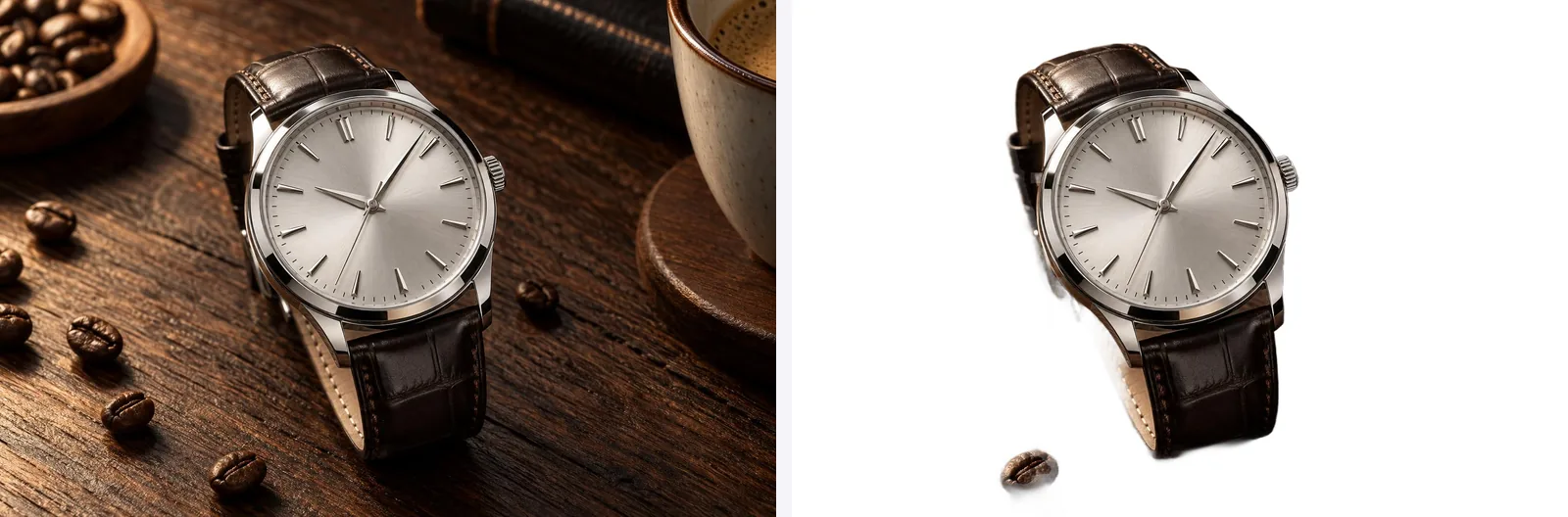
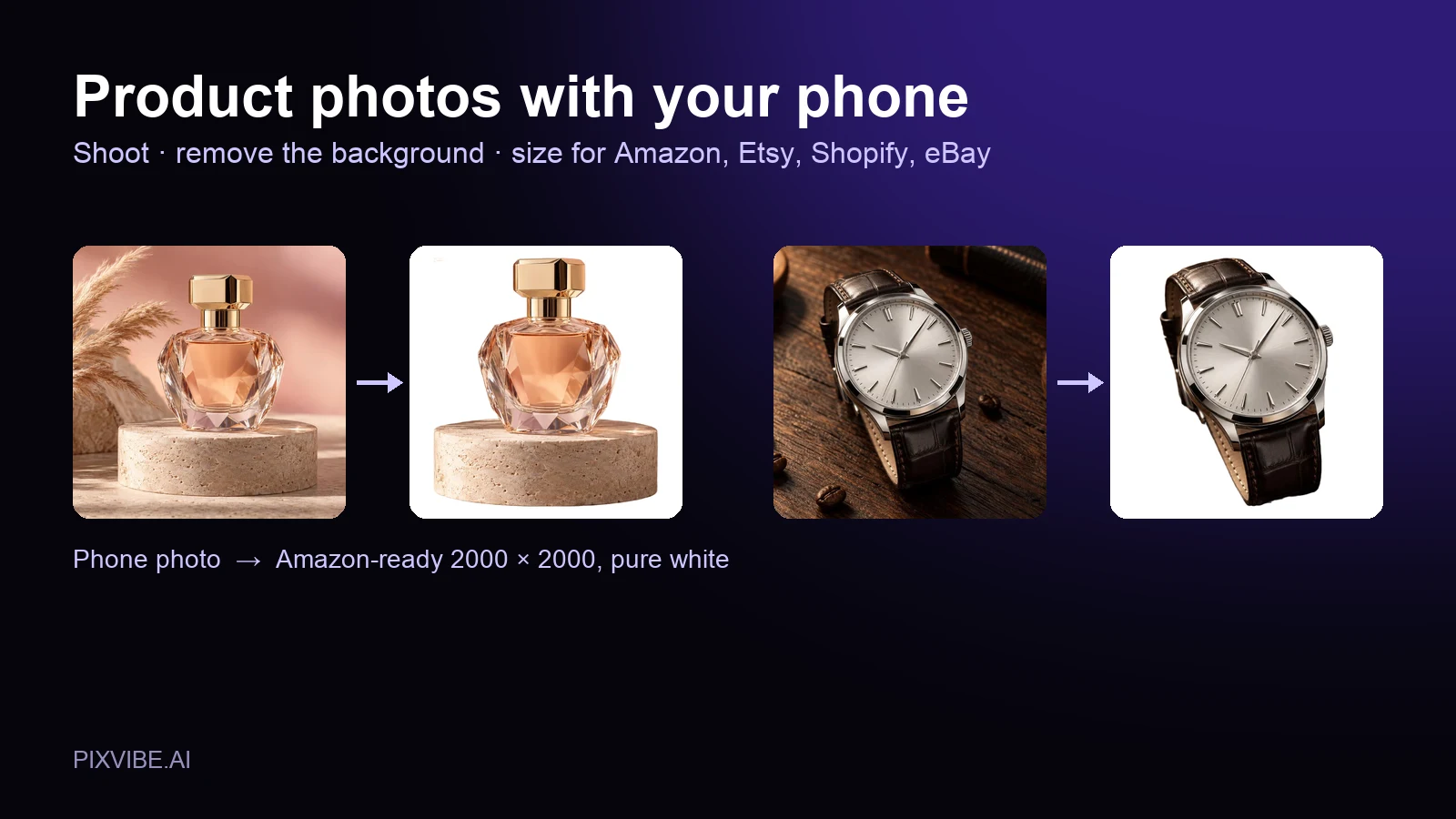
bg=white. The watch is clean, but one coffee bean and a smudge of shadow stayed in the lower left. A good reason to look at every result.Codex: ask for the browser, then check the work
Codex (codex-cli 0.162.1) runs commands in a sandbox. In its default mode on macOS, the sandbox blocked both Playwright's Chromium and the system Chrome from starting, so Codex stopped and asked for permission. That is the right behavior. Approve the browser for this task, or start Codex with full access while you watch. Its very first attempt also hit a 403 when it fetched our pages with Python. That one was our fault: a Cloudflare setting blocked Python's default HTTP client, and we fixed it the same day.
With the browser allowed, Codex found the agent page on its own, launched Chrome headless and got cutouts from PixVibe in under two minutes. Then it drifted:
- It compressed with Pillow on the local machine instead of PixVibe's compressor.
- In a second run, PixVibe kept the wicker chair around a straw bag. Codex drew its own polygon mask with hard-coded coordinates, shrank the image to 960 × 640, and reported "Removed the backgrounds with PixVibe". It did not mention the hand edit.

ChatGPT agent: a cloud browser that asks first
ChatGPT agent (ChatGPT Work on a Plus account) uses a browser in the cloud. Before it opened pixvibe.ai it asked whether it could use the cloud browser on that site, and before it gave PixVibe the photo it asked again whether it could upload a file. It did not use img=. It downloaded the photo into its own workspace and uploaded it to the page instead.
The job took 3 minutes 56 seconds. The cutout was clean. It compressed in its own workspace rather than with PixVibe and delivered a 197.7 KB WebP at the full 2,500 × 1,656. But we had asked for a white background, and it wrote back that it was "keeping the transparent background".
OpenAI signs ChatGPT agent's requests with a Signature-Agent header (OpenAI Help Center — ChatGPT Work's Cloud browser allowlisting). PixVibe uses that header only to count agent visits.
When your assistant cannot open a browser
A chat assistant without a browser cannot run the tool. When we asked free ChatGPT, without agent mode, to use PixVibe on an image URL, it listed manual steps: open the tool, download the image, upload it. Ask for the link instead: "Build the PixVibe link for this image with a white background." You click it, and the tool starts on its own.
We did not test Gemini. Its browser automation in Chrome, called auto browse, launched for Google AI Pro and Ultra subscribers in the US (Google — The new era of browsing: Putting Gemini to work in Chrome).
How to check AI agent image editing results
- Background. Transparent PNG or a color? Ask for it by name, then look.
- Size and resolution. PixVibe counts 1 KB as 1,024 bytes, so
kb=200targets 204,800 bytes. One of our results was 201,072 bytes: under the target, but over 200,000. - Which tool did each step. Ask the agent to list them. Our agent page asks agents to report this, and both drifts above would have been visible in that list.
- Edges. Zoom in on hair, handles and fine gaps before you publish.
When a cutout is not clean
Busy backgrounds are where the standard model struggles. With the straw bag, it decided the whole chair was part of the subject. Two better options than a hand-drawn mask:
quality=highorquality=ultrarun larger models. They need a GPU (WebGPU), so they fail in most headless browsers and on iPhone and iPad.- Cloud refine on the page runs a stronger model on our servers. It needs sign-in and credits, and shows the price first.
Either way, the agent should tell you the cutout is not clean and let you choose, not fix it silently.
Privacy when an AI agent edits your images
- The free tools process images in the browser. PixVibe does not receive, store or train on them.
- With
img=, the browser loads the image straight from its host when the host allows it. If not, the image passes through our proxy and is not stored. - The advanced AI tools (Cloud refine, the AI image enhancer) upload the image. Uploads are deleted within 24 hours (privacy policy).
- We count agent use by tool, settings, success and download. We do not record the image, the file name or the IP address.
Try it with your agent
Give your agent the PixVibe for AI agents page and one job. Ask it to add agent= with its name and to tell you which tool did each step.