A folder of mixed downloads
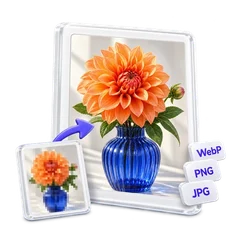
Images saved from different sites arrive as WebP, AVIF and PNG. Running them through the JPG converter gives you one consistent set for a slideshow, a shared album or a print order.
This JPG converter turns almost any image into a JPG: iPhone HEIC photos, PNG screenshots, WebP and AVIF pictures saved from websites, and TIFF scans. It works in your browser, so files stay on your device. JPG opens on every phone, computer and website and keeps photos small. Each kind of file changes a little on the way, and the table below shows exactly how.
Drop HEIC, PNG, WebP, AVIF, TIFF, BMP and TGA images in one go. JPG is preselected, so every file comes out in the same format.
A JPG you add here switches to Compact automatically. If re-saving cannot make it smaller, you get the original file back untouched.
Fast uses the browser's own encoder. Compact and Quality use the MozJPEG encoder at quality 58 and 95, and the Quality slider fine-tunes from there.
Every JPG written from another format is rebuilt from pixels, so the camera details and GPS coordinates in the original are not copied over.
| PNG | Transparent areas are filled with white. | Logos and text screenshots can show faint fuzz around edges; those are better kept as PNG. |
|---|---|---|
| HEIC / HEIF | Decoded from the iPhone format, then compressed once as JPG. | The result opens on Windows, Android and any upload form. |
| WebP | Becomes a standard JPG; any transparency turns white. | An animated WebP keeps only its first frame. |
| AVIF | Same as WebP: a white background replaces transparency. | Useful for apps and sites that cannot open AVIF yet. |
| TIFF | Only the first page of a multi-page TIFF is converted. | Large scans usually shrink to a fraction of their size. |
| BMP / TGA | Uncompressed pixels are compressed into a JPG; TGA transparency turns white. | Expect a much smaller file. |
| JPG | Compact is picked automatically; if re-saving cannot beat the original size, the original file comes back. | To hit an exact size in KB, the image compressor is the better tool. |
Images saved from different sites arrive as WebP, AVIF and PNG. Running them through the JPG converter gives you one consistent set for a slideshow, a shared album or a print order.
HEIC photos often need an extra codec on Windows. As JPG they open in Photos, Word and every email client.
Job applications, school portals and ID checks frequently reject anything but JPG. Convert the photo or scan first.
Drop, paste or select files up to 100MB each. One file needs no account; up to 20 at once need a free account.
JPG is already chosen as the output format. Change the mode or drag the Quality slider, and the new total size updates.
Save files one by one, or use Download all (ZIP).
JPG was designed for photographs. Its lossy compression throws away detail the eye barely notices, so a phone photo or a scanned page ends up small and opens anywhere. That makes JPG the safe choice for sharing, uploading and printing.
JPG is the wrong choice in three cases. It has no transparency, so cut-outs and logos get a white box behind them. It blurs hard edges slightly, which shows on screenshots full of text. And every re-save loses a little more, so an image you will keep editing belongs in a lossless format. For those, use the PNG converter.
Converting from PNG, BMP, TIFF or TGA usually shrinks the file a lot, because those formats store far more data per pixel. Converting from WebP, AVIF or HEIC often does the opposite: they compress more efficiently than JPG, so the same picture as a JPG can be larger.
The mode matters too. Quality saves at 95 and produces the largest files; Compact saves at 58 for files that are far smaller with some visible softening. If you need the JPG under a limit such as 200 KB, convert first and then use the image compressor.
If you add a file that is already a JPG, Compact is selected for it automatically, since a smaller file is the only reason to convert a JPG into a JPG. When re-saving can't beat the original size, you get the original file back untouched.
Yes, in practice. Phones store details such as the camera model, the date and often the GPS position inside each photo. This converter draws the picture onto a canvas and encodes a new file from those pixels, so none of that information is copied into the JPG.
The photo still appears the right way up: orientation is applied before the new file is written.
One exception: when a JPG comes back unchanged because re-saving would not make it smaller, it is your original file and still carries the information it had.
Yes. Converting a single file needs no account, and a free account lets you convert up to 20 files at once. No watermark is added.
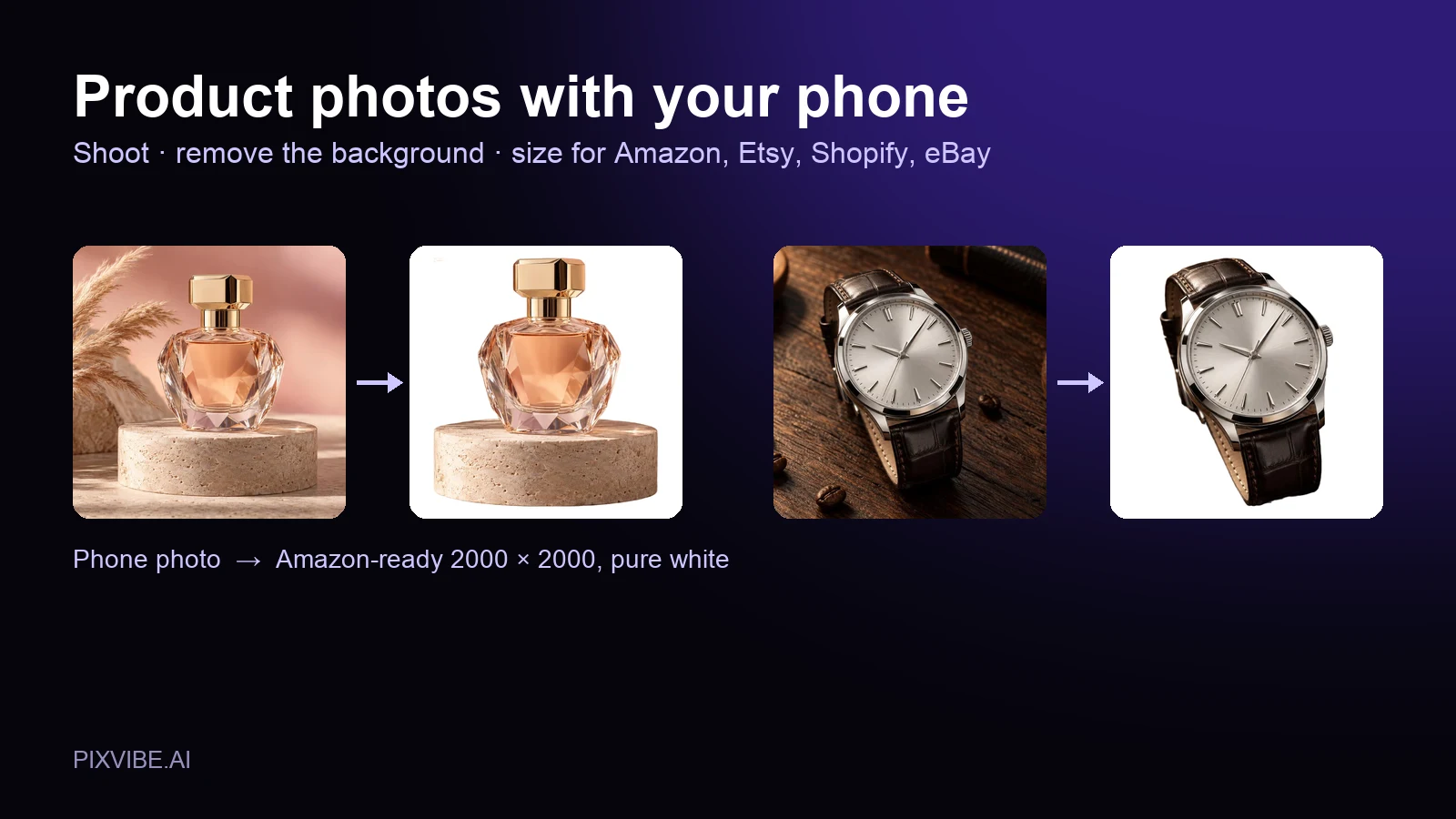
Shoot product photos on a phone, remove the background, and size them for Amazon, Etsy, Shopify and eBay. Official rules in one table.
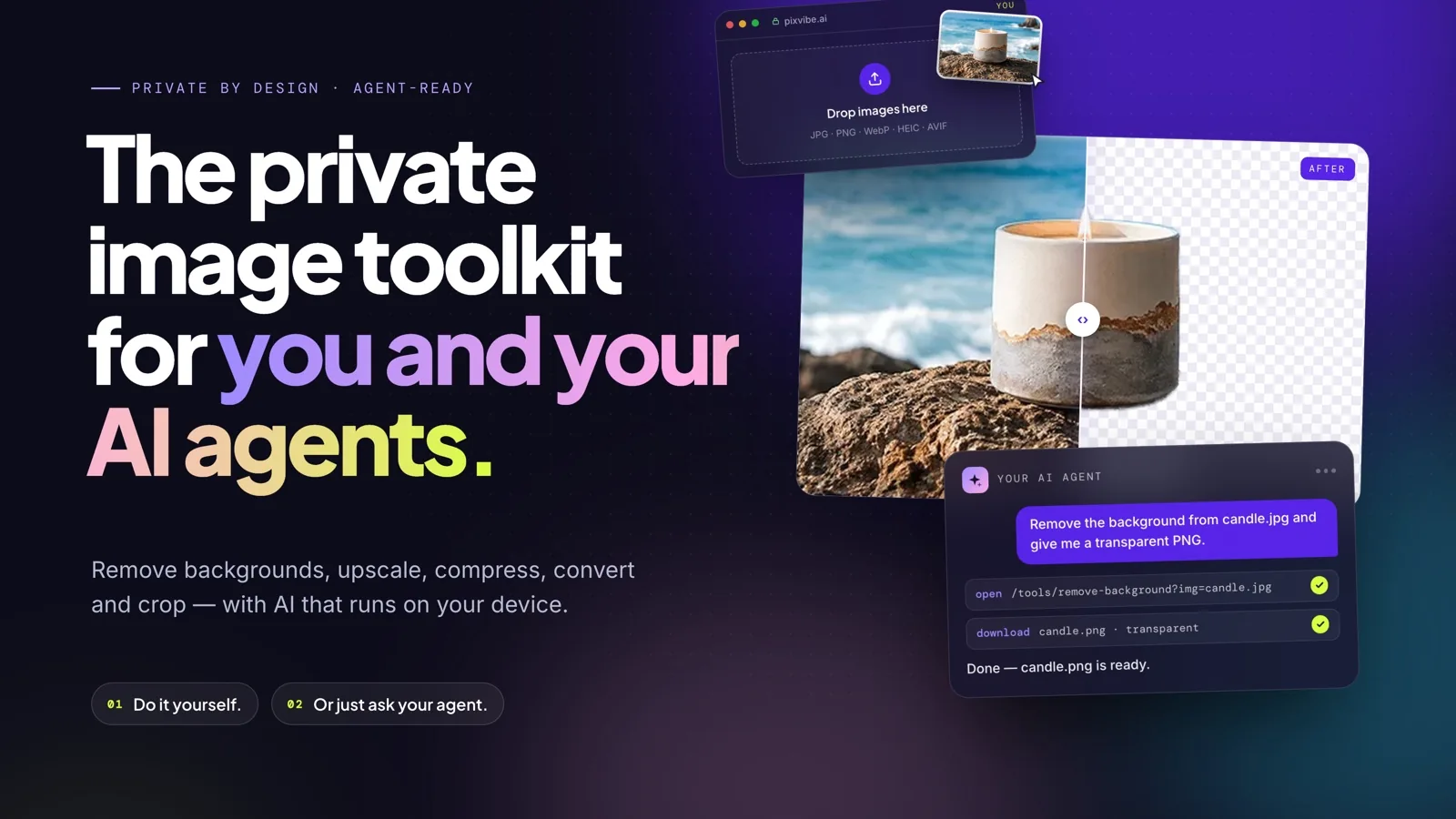
Let an AI agent edit images with PixVibe: one link per job, no API key. We tested Claude, Codex and ChatGPT agent, and show what to check.
Free · In-browser processing
 Remove BackgroundMake any image transparent — free PNG.
 Image ConverterHEIC to JPG, WebP to PNG, JPG to WebP & more.
 PDF to ImageTurn PDF pages into JPG, PNG or WebP images — pick pages and DPI.
 Image to PDFCombine JPG, PNG or HEIC photos into one PDF — A4, Letter or fit.
 Compress PDFShrink scanned and image-heavy PDFs, keep selectable text, or hit a target size in KB.
 Passport PhotoFrame your face to passport, visa or ID sizes, change the background and print several on one sheet.
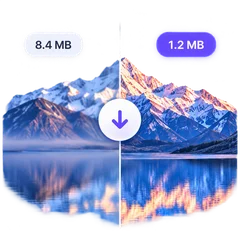 Compress ImageReduce image size, keep the quality.
 Resize ImageResize for YouTube thumbnails & any size.
 Crop ImageCrop and reframe with precision.
 AI UpscalerAI upscale image resolution up to 4×.
Free · In-browser processing
Server AI · Uses credits