Compress image to 200KB for NEET, JEE Main or CUET: what NTA's bulletins say
Three National Testing Agency bulletins use the same 200 KB ceiling for the photograph. The NEET (UG) 2026 bulletin asks for "80% face (without mask) visible including ears against white background", adds that "80% area of the image should be candidate's face", and says "Photograph should be in JPG/JPEG format (clearly legible) between 10 kb to 200 kb." The JEE (Main) 2027 bulletin asks for a color photo "with 80% face (including ears, without a mask) against white background" and reads "Size of the photograph should be between 10 kB to 200 kB and in JPG/JPEG format (clearly legible)"; the CUET (UG) 2026 bulletin uses nearly the same words. For each exam we quote the newest bulletin we found in November 2026: 2026 for NEET and CUET, 2027 for JEE Main. NEET and CUET add that the "Scanned copy of Identity Proof (for those candidates who will verify their identities through methods other than Aadhaar or DigiLocker)" should be JPG/JPEG between 10 KB and 200 KB. None of the three gives a pixel size for the photo. The signature has its own, smaller range: 10 to 100 KB for NEET and JEE Main, 10 to 50 KB for CUET, so use Compress Image to 100KB or Compress Image to 50KB for it. NEET also warns that "the facility for correction will not be given", so check the photo before you submit.
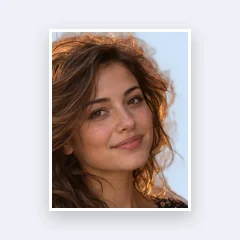
For the photo, framing comes first. Use Crop Image or Passport Size Photo to crop to head and shoulders so the face fills most of the picture, then bring it here. Our 1536 × 1024 portrait on a plain background fit in 198.8 KB at JPEG quality 77 with no scaling. We also resized two portraits to 3.5 × 4.5 cm proportions in Resize Image (default quality 90): 276 × 354 gave 37.0 and 29.5 KB, 413 × 531 gave 69.2 and 56.6 KB, and 827 × 1063 gave 196.7 and 156.7 KB. All six were already under 200 KB, so this page returned each one byte for byte, and none came anywhere near the 10 KB floor. These bulletins are examples; read the one for your exam. This page only gets a file under a size limit; it doesn't check the photo against any other requirement.
What does a photo look like after it is compressed to 200 KB?
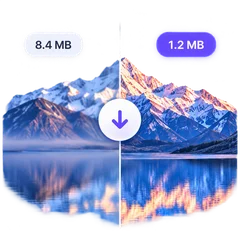
On a screen, much like the original. Our two 12-megapixel test photos came out at 1661 × 1246 (building site, JPEG quality 42) and 1567 × 1175 (papayas, quality 44), about 2 megapixels and 15 to 17% of the original pixels. Both are still wider, in pixels, than most phone screens held upright. When we viewed them side by side at 900 pixels wide, we couldn't tell the results from the originals. The loss shows when you zoom in: at 300% on the same small area, the thin wire mesh of the site fence had mostly disappeared and the workers in the distance were blurred, while on the papayas the fine dark speckles had faded and the strands of the foam nets had gone soft. For comparison, PixVibe's 100 KB page brought the same two photos down to 1174 × 881 and 1013 × 760, and its 20 KB page to 525 × 394 and 381 × 286.
For our two detailed 12 MP photos, the building site and the papayas, shrinking kicked in at close to 1700 pixels wide. Copies saved at 1700 × 1275 (647 and 595 KB) fit at their full size, at quality 40, the lowest the tool tries before it reduces pixels. Copies at 1800 × 1350, though, were scaled down to 1537 × 1153 and 1559 × 1169, narrower than the 1700 copies. That's because once the tool has to shrink, it aims about 10% below its size estimate to be sure of landing under the target, then picks the highest quality that still fits (51 and 47 here). At 1280 × 960 nothing was scaled and the quality rose to 71 and 66. If you would rather keep pixels than quality, and the line under the picture shows a photo was only just scaled down, resize it yourself to a little above the width it came out at and try again. For detailed photos like these two that was about 1700 pixels; a plain photo or a document can fit at a much larger size, like our ID card at its full 4032 × 3024.
Saved as WebP instead of JPG, the two 12 MP photos kept 1285 × 964 and 1704 × 1278 pixels. AVIF gave 1652 × 1239 on the building site but 2764 × 2073 on the papayas, about three times the pixels of the JPG, and took 24 and 46 seconds on our Apple M4 Mac mini, compared with about 6 for JPG. With "Shrink dimensions if needed" unchecked, both photos stayed at 4032 × 3024 and stopped at 295.0 and 234.5 KB, still over the target. We ran everything on 22 November 2026 using Chromium 149 and the defaults this page opens with, changing only the output format where the table says so. Both photos are CC0 files from Wikimedia Commons (building site, papayas). The other resized portraits, the 1280-pixel copies, the papaya HEIC and the runs with "Shrink dimensions if needed" unchecked are described in the text, not in the table. Sizes in the table are bytes ÷ 1,000, rounded to one decimal place.
Identity proofs and photos of documents at 200 KB
At this size a photo of a page keeps its text. The simulated phone shot of a printed A4 form (3024 × 4032) became a 198.7 KB JPG of 1858 × 2477 pixels, quality 49, and at 200% even the line of fine print at the bottom read almost as cleanly as in the original. Saved as a PNG it had to drop to 560 × 747 pixels and 250 colors: the body text was still readable but had jagged edges, and the fine print was hard to make out. The JPG kept about 11 times as many pixels, and took 6 seconds on our Mac mini, compared with 34 for the PNG. The same page fared worse at lower targets: it came out at 1160 × 1546 on the 100 KB page, where the smallest line was readable but soft, and at 427 × 569 on the 20 KB page, where the small text was unreadable.
A simulated phone photo of an ID card on a desk (4032 × 3024, 2.20 MB) did not need shrinking at all: the JPG came out at 188.4 KB, quality 57, full size, and in a close-up next to the original we could not see a difference. As a PNG it went down to 693 × 520 with 256 colors; the name and numbers stayed readable, while the fine print was rough and the barcode blurred. Our card is plain and sits on a smooth desk, so a real card with a patterned background, photographed in poorer light, may need to be scaled down. We made the card (a fictional specimen) and the A4 page ourselves, with simulated perspective, uneven light and sensor noise, and made the close-ups from the files in the table.
The NEET (UG) 2026 bulletin asks for certificates and mark sheets as PDFs of 50 to 300 KB, not images; for those use Compress PDF to 300KB. If a form wants a PDF of up to 200 KB, use Compress PDF to 200KB.
HEIC photos and PNG screenshots when a form says JPG
All three NTA bulletins ask for JPG/JPEG files. A HEIC photo from an iPhone needs no extra step here: with "Output format" on "Original format", it is saved as JPG. We encoded the two test photos as HEIC with macOS's own image encoder (2.61 and 1.38 MB) and both came out as JPG, at 1678 × 1259 (191.7 KB) and 1596 × 1197 (194.4 KB), in about 10 seconds each. For the papaya HEIC we also chose JPG by hand, and got the very same file.
A PNG behaves differently, because it keeps its format unless you change "Output format". Our 1179 × 2556 phone screenshot (371 KB) came out as a 134.3 KB PNG with 254 colors, still at full size, after 32 seconds; with JPG selected it was a 173.8 KB JPG, also at full size, at quality 89 in 4 seconds. So for a JPG-only form, switch a PNG to JPG before you download. Any transparent area turns white in a JPG.