An app or upload form that asks for PNG
Some design tools, sticker makers and forms list PNG as the only accepted format, so a picture saved from the web as .jfif has to become a real PNG, not just a renamed file.
PixVibe's JFIF to PNG converter turns .jfif pictures into PNG files in your browser, so nothing is uploaded. Output is preset to PNG. For most .jfif files the PNG keeps the decoded pixels exactly, adding and removing no detail; phone photos with a Display P3 color profile are converted to standard sRGB colors. Two things surprise people: the PNG is several times larger than the .jfif (the four files in our test table grew 2.6 to 7.5 times), and it is not transparent, because a .jfif has no transparency to carry over. Below are the measured sizes, how to get a smaller PNG with the same picture, what happens to color profiles, orientation and location data, and when JFIF to JPG is the better choice.
For .jfif files without a color profile, every pixel of the PNG matched the decoded .jfif in our tests, including progressive, grayscale and CMYK files. Photos with a Display P3 profile are converted to sRGB instead. Fast and Compact always gave the same pixels; only the file size differed.
Fast, the default, writes the PNG quickly with an extra, fully opaque alpha channel that adds no transparency. Compact leaves it out and packs the data tighter: our 12 MP photo went from 21.07 MB to 14.53 MB, our screenshot from 3.26 MB to 1.63 MB.
A phone photo stored rotated 90 degrees, with a tag saying how to turn it, comes out the right way up. Camera model, GPS position and other EXIF data are not copied into the PNG.
No sign-in is needed for a single .jfif. With a free account, “Convert all” takes up to 20 files in one batch and “Download ZIP” saves them together; nothing leaves your device.
| Test file | .jfif | PNG on Fast | PNG on Compact |
|---|---|---|---|
| Photo: building site | 8.20 MB | 21.07 MB | 14.53 MB |
| Photo: papayas | 3.19 MB | 22.19 MB | 14.54 MB |
| Web picture | 142 KB | 1.06 MB | 781 KB |
| Screenshot | 575 KB | 3.26 MB | 1.63 MB |
Some design tools, sticker makers and forms list PNG as the only accepted format, so a picture saved from the web as .jfif has to become a real PNG, not just a renamed file.
Each save as JPEG compresses the picture again. As a PNG, you can edit and save it as often as you like without losing anything more.
Slides, mock-ups or documentation that use PNG throughout: downloaded .jfif images go in up to 20 at a time and come back as PNGs with the same names.
Choose them or drag them onto the upload area; .JFIF in capital letters works too. PNG output, the Mode set to Fast and Reduce colors set to Lossless are preset, and a single file is converted right away.
Switch the Mode to Compact for the same pixels in a smaller file; it takes a few seconds longer. Press “Convert again” (“Convert all again” for several files) to apply it.
Each file keeps its name with a .png ending. Save files one by one, or several together with “Download ZIP”.
A .jfif file holds an ordinary JPEG picture under an unusual file extension (JFIF to JPG explains the format). The two conversions do very different things to it.
JFIF to JPG only changes the name. On PixVibe's JFIF to JPG page, our 12 MP phone photo came back as an 8.20 MB .jpg, byte for byte the same file. If an upload form just rejects the .jfif ending, that is all you need.
JFIF to PNG decodes the picture and stores it again in a new format. The same photo became a 21.07 MB PNG on Fast and 14.53 MB on Compact. Choose PNG when an app or form really requires PNG, or when you will edit the picture and save it many times: PNG is lossless, so later saves add no new compression damage.
PNG does not undo what JPEG compression already did. The blocky patches and blurred fine detail in the .jfif are copied into the PNG pixel for pixel; all that changes is the file size.
Several times bigger, and how much depends on the picture, not only on the size of the .jfif. In our tests in Chromium 149 on a Mac mini M4 (sizes in decimal units: a KB is 1,000 bytes, an MB is a million), the default Fast mode made PNGs 2.6 to 7.5 times the size of the .jfif. The busy building-site photo grew least, from 8.20 MB to 21.07 MB. The papaya photo grew from 3.19 MB to 22.19 MB, almost 7 times. The 800 × 533 picture saved from a web page grew 7.5 times, and the 3200 × 2400 screenshot about 5.7 times.
Compact is the easy way to save space. It writes exactly the same pixels as Fast (we compared every pixel of both) and made our PNGs 26 to 50% smaller than on Fast: the two 12 MP photos came to about 14.5 MB, the web picture went from 1.06 MB to 781 KB, the screenshot from 3.26 MB to 1.63 MB. Part of the difference is that Fast stores every image, even a grayscale one, as color plus an alpha channel, and that alpha channel is fully opaque. Fast took 0.5 to 4.5 seconds per file in our tests; Compact took up to about 10 seconds for a 12 MP photo. The converter shows sizes rounded up, so it may read 21.08 MB where this page says 21.07 MB.
Reduce colors goes much further but changes the picture. At 256 colors the screenshot came down to 602 KB and the 12 MP photos to about 6.4 MB: smaller than the 8.20 MB building-site .jfif, but twice the 3.19 MB papaya one. Viewed at actual size, a crop from the papaya photo looked almost the same, yet 99.9% of its pixels shifted slightly, so keep the .jfif if you may need the original colors. If what you need is simply a smaller file than the .jfif, PNG is the wrong target: JFIF to JPG keeps both photos at their original size, and the image compressor can go below it.
No. A .jfif file has no transparency, so the PNG is fully opaque: in all of our converted files every pixel had an alpha value of 255. Changing the format does not tell the picture what is foreground and what is background.
For a transparent background, open the .jfif in PixVibe's background remover instead. It accepts .jfif files directly and gives you a PNG with the background cut out, so there is no need to convert to PNG first.
Kept: the pixels. For .jfif files without an embedded color profile, the PNG had the same pixel values as the decoded .jfif in every test (maximum difference 0). That covered our web picture, screenshot, grayscale, progressive and CMYK test files.
Converted: colors from a Display P3 profile. Both of our 12 MP photos were taken on iPhones and carry a Display P3 color profile. The browser converts such pictures to standard sRGB colors, and the PNG has no color profile of its own. Our PNGs matched a standard Display P3 to sRGB conversion to within 1 on the 0–255 scale. On most screens the photo looks the same, but the PNG no longer stores the most saturated colors, the ones only a wide-gamut screen can show, as P3.
Applied: orientation. A photo stored rotated (2496 × 1664 pixels saved as 1664 × 2496 with a rotation tag) came out upright at 2496 × 1664.
Dropped: metadata. The PNGs held only the image itself. Camera model, GPS position and other EXIF data were left out, as was the DPI value, so a print size set in the .jfif is not carried over. Both iPhone photos had GPS coordinates, and neither PNG kept them.
Every .jfif we tried converted. Besides ordinary files, that included a progressive JPEG (the kind that loads blurry first, then sharp), a grayscale picture and a CMYK file, all with the same pixels as the decoded original. The file was recognized even when the browser reported no file type or a generic one, and a file named in capitals, BIKE.JFIF, came out as BIKE.png.
One case is handled differently. A file that ends in .jfif but is really a PNG inside is identified by its content, not by its name, and passed through: our 896.9 KB test file came back byte for byte unchanged, only renamed to .png.
Open PixVibe's JFIF to PNG page and add the .jfif file. PNG output is preset, the file is converted in your browser, and you download the PNG. For a smaller file with the same picture, switch the Mode to Compact and press “Convert again”.
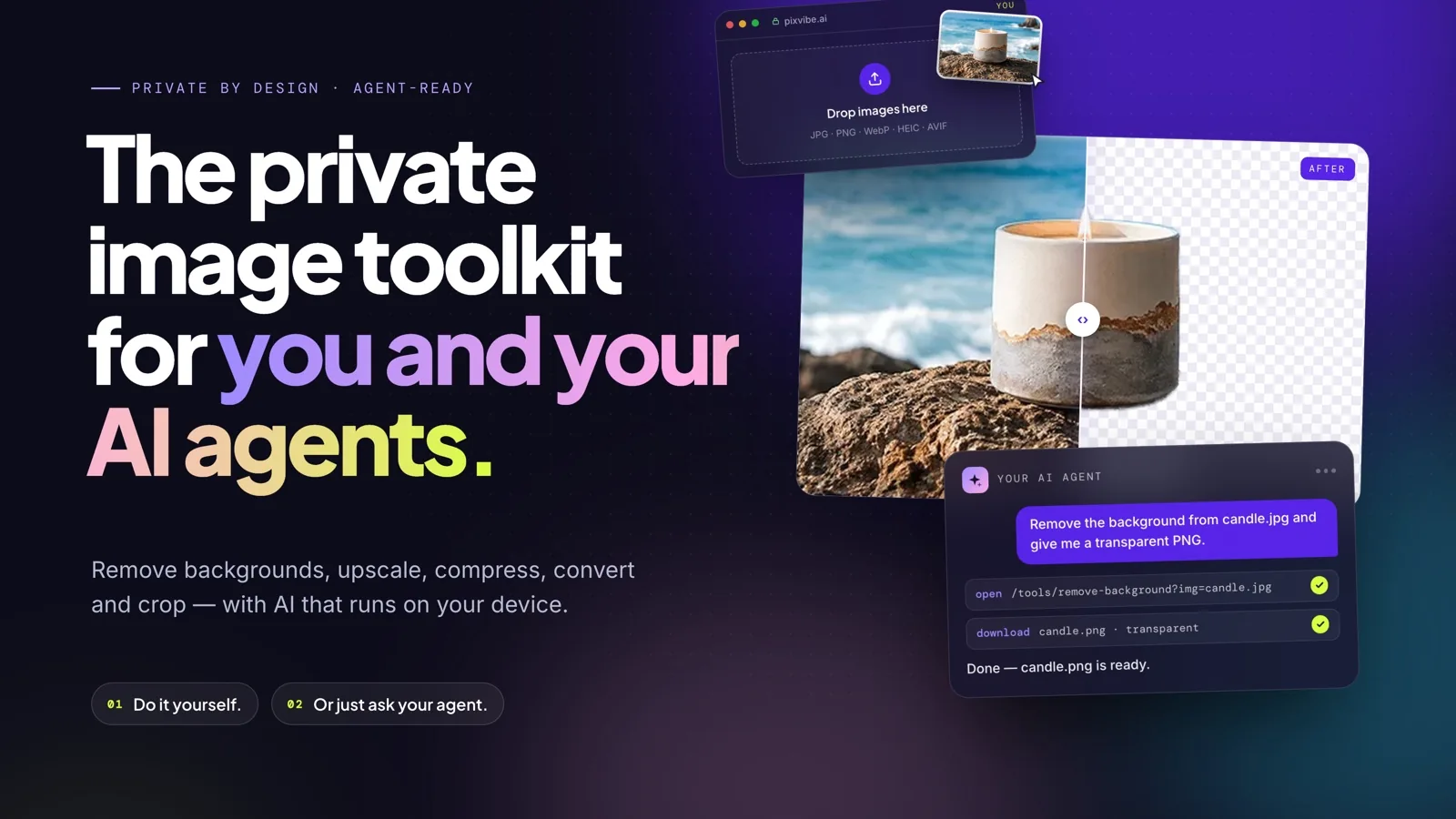
Let an AI agent edit images with PixVibe: one link per job, no API key. We tested Claude, Codex and ChatGPT agent, and show what to check.
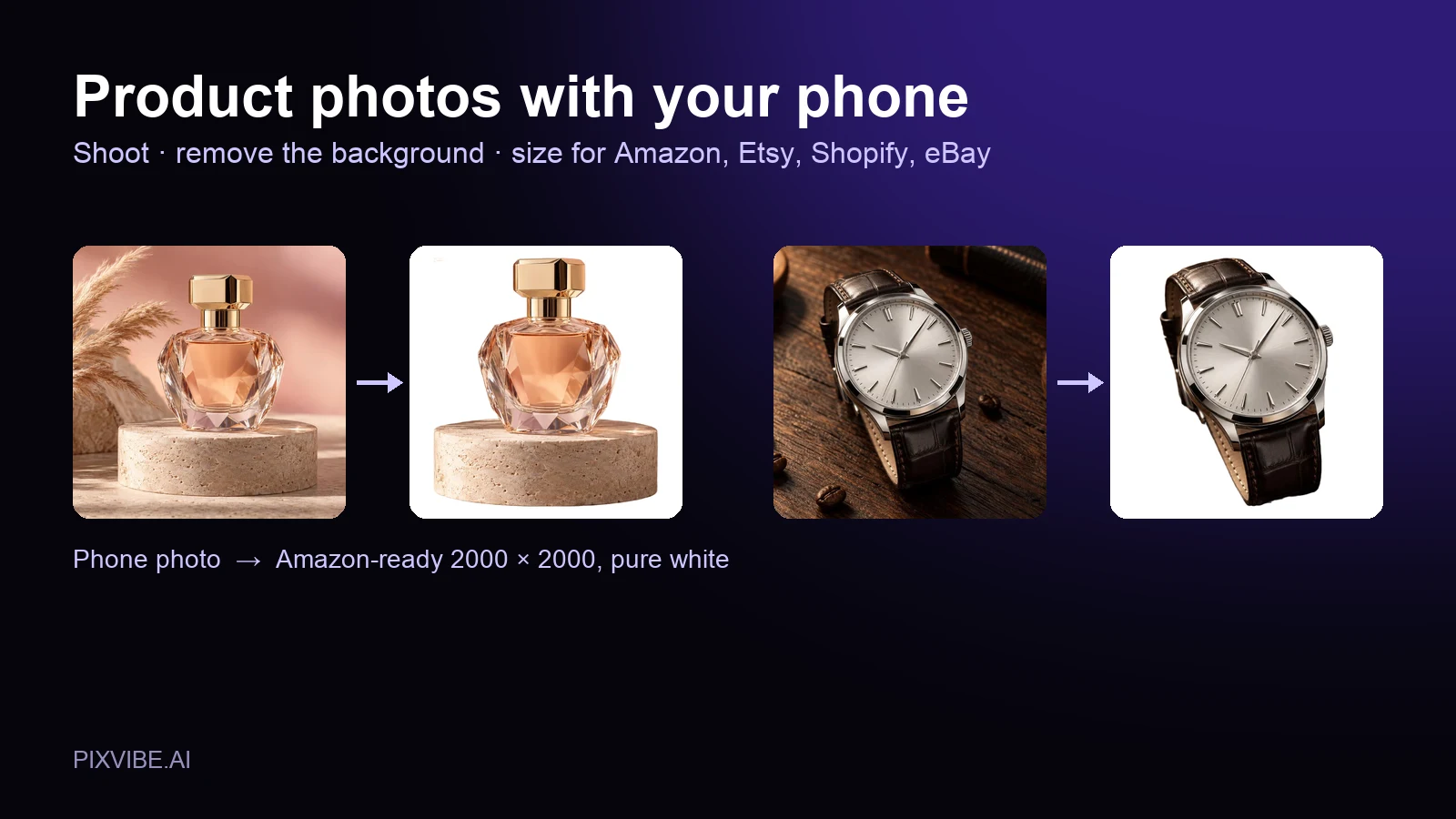
Shoot product photos on a phone, remove the background, and size them for Amazon, Etsy, Shopify and eBay. Official rules in one table.
Free · In-browser processing
 Remove BackgroundMake any image transparent — free PNG.
 Image ConverterHEIC to JPG, WebP to PNG, JPG to WebP & more.
 PDF to ImageTurn PDF pages into JPG, PNG or WebP images — pick pages and DPI.
 Image to PDFCombine JPG, PNG or HEIC photos into one PDF — A4, Letter or fit.
 Compress PDFShrink scanned and image-heavy PDFs, keep selectable text, or hit a target size in KB.
 Passport PhotoFrame your face to passport, visa or ID sizes, change the background and print several on one sheet.
 Compress ImageReduce image size, keep the quality.
 Resize ImageResize for YouTube thumbnails & any size.
 Crop ImageCrop and reframe with precision.
 AI UpscalerAI upscale image resolution up to 4×.
Free · In-browser processing
Server AI · Uses credits