Compress PDF to 250KB

Compress PDF to 250KB when an application form caps each document at 250 KB. PixVibe's Compress PDF tool already has the target set here: add the PDF and it is compressed straight away at the Recommended level. Below are three things we measured that a bare size limit won't tell you: when a 250 KB target gives you anything a 200 KB one wouldn't, what happens to a certificate that carries a digital signature, and why black-and-white office scans barely shrink. You don't need an account for one PDF at a time, and the file stays on your device.

WHY USE IT

Features

250 KB already in the box

Target size opens at 250. If your form gives a different limit, type it and press Compress again; earlier runs stay on screen as separate versions.

Warns you about signed PDFs

When a PDF carries a digital signature, the result at Recommended or Smaller says so: “This PDF has a digital signature, which compression invalidates.” Smallest shows no such note, because its result no longer contains the signature.

Black-and-white scans kept as they are

Recommended and Smaller recompress only JPEG images. Pages saved as CCITT G4 or JBIG2, which office scanners often use for black and white, keep their images unchanged.

Runs on your device

Compression happens in the browser tab. One PDF needs no account; with a free one you can add up to 20 in a batch.

WHAT IT'S FOR

Use cases

A form that caps each document at 250 KB

Admission, recruitment and scholarship portals that cap every uploaded document, and set that cap at 250 KB.

A certificate that came as a signed PDF

Downloaded from the office that issued it, with a digital signature inside. Check whether it already fits before you change anything.

A mark sheet scanned in black and white

Saved by an office scanner in black-and-white mode, it is often small enough as it is; when it isn't, fewer pages help more than harder compression.

HOW IT WORKS

How to compress a PDF to 250 KB

01

Add the PDF

Drop the file into the tool, or select it with Choose PDF. Compression starts at once with 250 KB as the target.

02

Read the size and any notes

The new size appears under the result. A note follows if the file is still over 250 KB, or, at Recommended or Smaller, if it carried a digital signature.

03

Switch level only if needed, then download

Still over 250 KB at Recommended? For a colour scan, pick Smallest (pages as images) and press Compress again; text in that version can no longer be selected. For a black-and-white scan, see below. Then click Download.

Compress PDF to 250KB or 200KB: when does the extra 50 KB count?

PixVibe's Compress PDF tool doesn't aim for a file close to 250 KB. Recommended tries four fixed steps in turn, from 150 DPI at higher JPEG quality down to 72 DPI at lower quality, and keeps the first result at or under the target. If no step fits, it returns the smallest result it made, normally the 72 DPI one, and marks it as over. Smaller starts at the 100 DPI step: with a target set, it ends at the same 72 DPI step as Recommended, so it never gets a file any smaller. When Recommended is over, the level to try next is Smallest, which turns the pages into images.

We tested PixVibe Compress PDF on 2026-11-20 with generated colour A4 pages of roughly 925 KB each and scanner-like grain, in files of one to six pages. The 200 KB and 250 KB targets returned the identical file at every page count. What changed was whether that file passed: the five-page file came to 238.4 KB at 72 DPI, which counts as over at a 200 KB target and fits at 250 KB, without switching to Smallest. A 300 KB target got the two- and three-page files one step sharper instead (289.1 KB at 120 DPI and 270.9 KB at 100 DPI, which fit under 300 but not under 250), and let the six-page file fit at Recommended. At 250 KB, the six-page file needed Smallest. So in this test, with colour A4 scans of about 925 KB a page, a 250 KB limit held five pages at Recommended and six at Smallest.

So type the exact figure your form allows. Entering a lower number to be safe never gives you a better result, and can cost you a resolution step for nothing. Your own scans will land on different numbers, but the steps work the same way.
Signed certificates: compressing breaks the digital signature

Some certificates are issued as PDFs that carry the issuing office's digital signature, which a PDF reader lists as a signature on the document. Compression rewrites the file, so that signature cannot survive it. We signed a one-page test certificate of 444.2 KB and checked it with the open-source validator pyHanko before and after. At Recommended with a 250 KB target the file came to 231.1 KB; the signature was still listed but failed the integrity check, and the result carried the note “This PDF has a digital signature, which compression invalidates.” At Smallest (205.5 KB) the signature was gone altogether, and the result showed no signature note, only “Pages turned into images: text is not selectable.”

A signed PDF that is already under 250 KB gets no exception. Our signed certificate of 208.3 KB was still recompressed to 172.7 KB, and its signature failed the same check. So look at the size first: if the signed PDF is 250 KB or less, upload the original. If it is bigger, ask the issuing office for a smaller copy, or ask the form's helpdesk whether a scanned copy is accepted. Compress it only if a copy without a valid signature will do.

Black-and-white scans: usually small already, hard to squeeze further

Office scanners set to black and white often store each page as a 1-bit image compressed with CCITT G4 or JBIG2, which is very compact. Our 300 DPI black-and-white test pages took about 61 KB each: a four-page file came to 243.5 KB, under 250 KB without any compression. If yours is already under the limit, upload it unchanged.

When such a file is over the limit, Recommended and Smaller can't help, because they only recompress JPEG images. Our five-page black-and-white scan of 304.2 KB came out at 304.1 KB at Recommended, with a note pointing to Smallest. Smallest redraws every page as a colour JPEG, which handles black text on white poorly: its first resolution step produced about 1.3 MB, over four times the original, and its last step reached 252.4 KB, still 2.4 KB too big. For a file like this, remove pages the form doesn't ask for or split it into two PDFs.

OUR TEST

Our test, 2026-11-20: PixVibe Compress PDF at Recommended, colour scans of about 925 KB a page

Colour A4 scan (original size)250 KB target200 KB target300 KB target
1 page (926.9 KB)145.6 KB at 120 DPI, fitsSame 145.6 KB file as at 250 KB, fitsSame 145.6 KB file as at 250 KB, fits
2 pages (1.86 MB)181.4 KB at 100 DPI, fitsSame 181.4 KB file as at 250 KB, fits289.1 KB at 120 DPI, fits (one step sharper)
3 pages (2.78 MB)144.3 KB at 72 DPI, fitsSame 144.3 KB file as at 250 KB, fits270.9 KB at 100 DPI, fits (one step sharper)
4 pages (3.71 MB)191.5 KB at 72 DPI, fitsSame 191.5 KB file as at 250 KB, fitsSame 191.5 KB file as at 250 KB, fits
5 pages (4.63 MB)238.4 KB at 72 DPI, fitsSame 238.4 KB file as at 250 KB, overSame 238.4 KB file as at 250 KB, fits
6 pages (5.56 MB)285.7 KB at 72 DPI, over; Smallest: 244.9 KB, fitsSame 285.7 KB file as at 250 KB, overSame 285.7 KB file as at 250 KB, fits
FAQ

Frequently asked questions

Add the PDF to the tool at the top of this page. The 250 KB target is already set, so it is compressed at once: Recommended works down from 150 DPI towards 72 DPI and stops at the first result of 250 KB or less. If even 72 DPI is too big, the result is marked as over and the note points you to Smallest.

RELATED

You might also need

Related articles

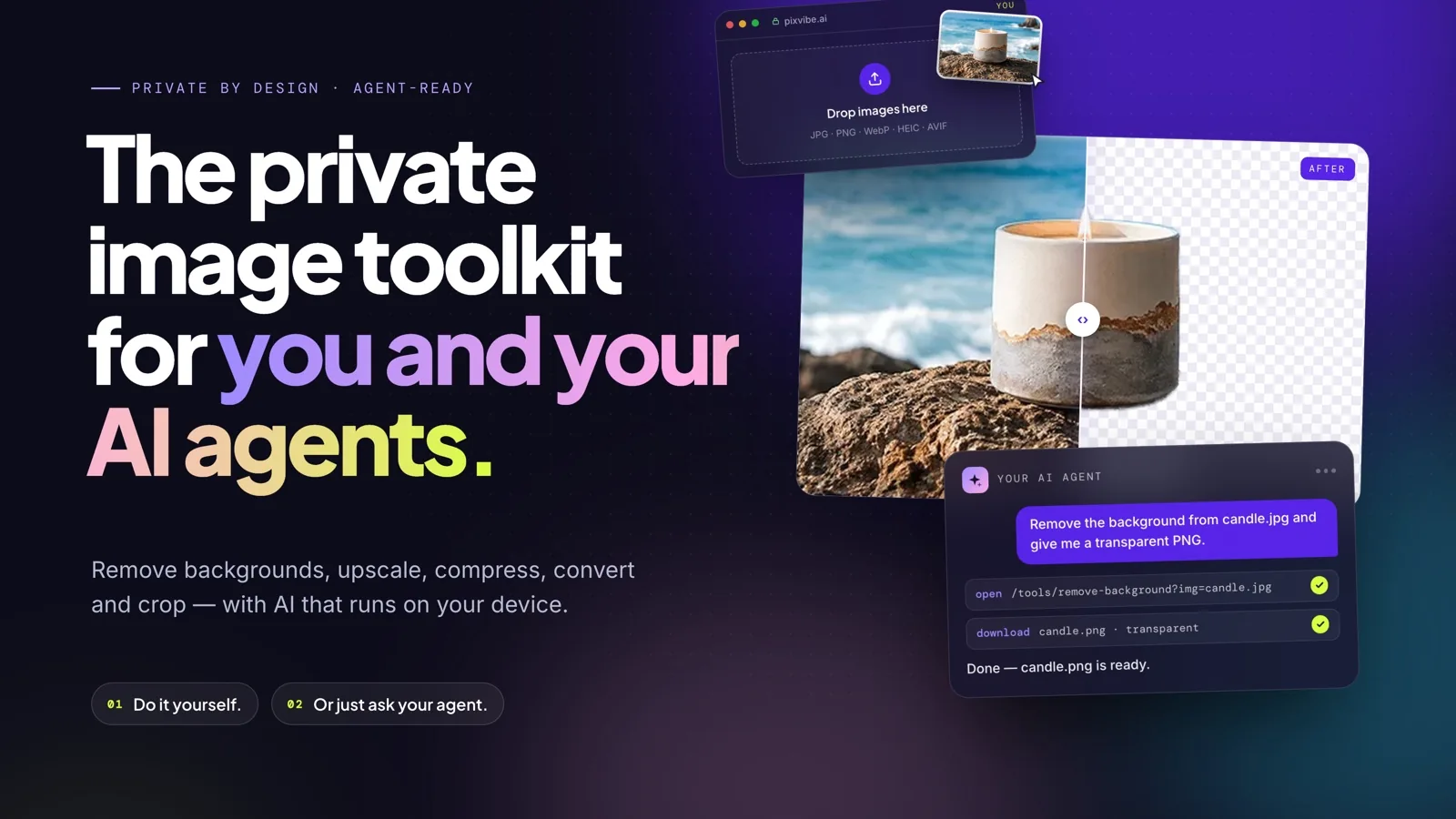
PixVibe, the private image toolkit for you and your AI agents: an agent opens a link and downloads a transparent candle cutout
Guide

How to Let Your AI Agent Edit Images with PixVibe

Let an AI agent edit images with PixVibe: one link per job, no API key. We tested Claude, Codex and ChatGPT agent, and show what to check.

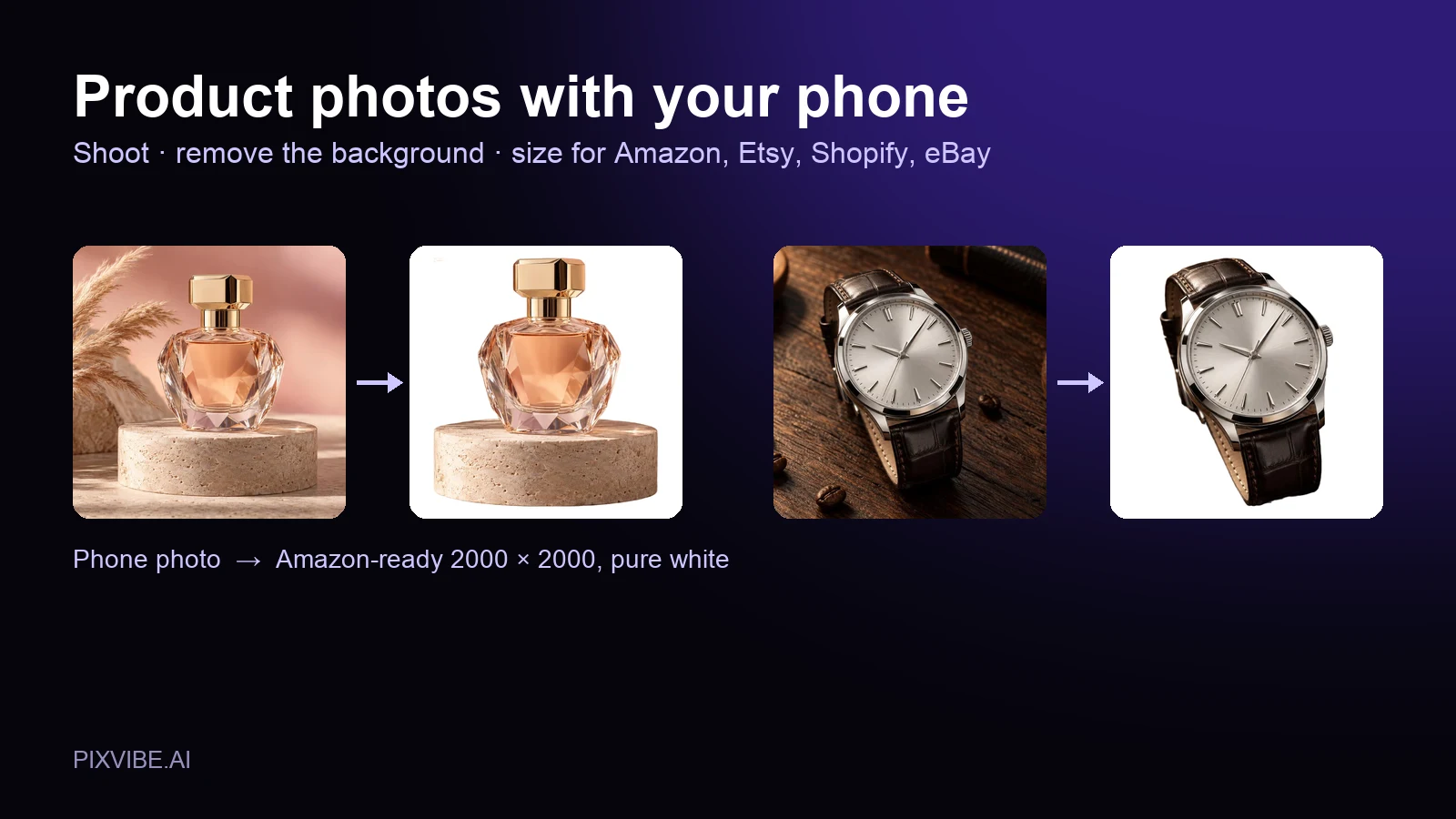
A perfume bottle and a watch photographed on a phone, each turned into a 2000 × 2000 product photo on a pure white background
Guide

Product Photos With Your Phone: Amazon, Etsy & Shopify Sizes

Shoot product photos on a phone, remove the background, and size them for Amazon, Etsy, Shopify and eBay. Official rules in one table.

MORE TOOLS

Explore more tools

Free image tools

Free · In-browser processing

Free video tools

Free · In-browser processing

Pro tools

Server AI · Uses credits

Tags on this page