Home

Pricing

Blog

Free image tools

Free · In-browser processing

Remove BackgroundTransparent PNG in seconds.Image ConverterSwitch between image formats.PDF to ImageTurn PDF pages into JPG, PNG and more.Image to PDFCombine images into one PDF.Compress PDFMake a PDF smaller, down to a target size.Passport PhotoPassport and ID photos in the right size, ready to print.Compress ImageSmaller files, crisp images.Resize ImageExact sizes for any platform.Crop ImageFrame your image just right.AI UpscalerEnlarge images up to 4×.

Free video tools

Free · In-browser processing

Compress VideoShrink a video to a set file size, in your browser.

Pro tools

Server AI · Uses credits

AI Background Remover HDPrecise hair and fine edges.HD Image ConverterUpscale and convert in HD.AI Image EnhancerEnhance detail with advanced AI.
View all tools
PixVibe
Home

Free image tools

Free · In-browser processing

Remove BackgroundTransparent PNG in seconds.Image ConverterSwitch between image formats.PDF to ImageTurn PDF pages into JPG, PNG and more.Image to PDFCombine images into one PDF.Compress PDFMake a PDF smaller, down to a target size.Passport PhotoPassport and ID photos in the right size, ready to print.Compress ImageSmaller files, crisp images.Resize ImageExact sizes for any platform.Crop ImageFrame your image just right.AI UpscalerEnlarge images up to 4×.

Free video tools

Free · In-browser processing

Compress VideoShrink a video to a set file size, in your browser.

Pro tools

Server AI · Uses credits

AI Background Remover HDPrecise hair and fine edges.HD Image ConverterUpscale and convert in HD.AI Image EnhancerEnhance detail with advanced AI.
View all tools
PricingBlog
PixVibe

Free AI image tools — remove backgrounds, convert, compress, resize & upscale in seconds.

Product

Remove BackgroundImage ConverterPDF to ImageImage to PDFCompress PDFPassport PhotoCompress ImageResize ImageCrop ImageAI UpscalerCompress VideoPricing

Pro tools

AI Background Remover HDHD Image ConverterAI Image Enhancer

Resources

ToolsBlogFor AI agentsHow we keep files localAI Font Prompts

Legal

Terms of ServicePrivacy PolicyLegalThird-party licensesContact

© 2026 PixVibe. All rights reserved.A Funovate Technology product

Notifications

No notifications yet

We'll let you know when something important happens.

HomeToolsCompress ImageCompress WebP
Local · no upload›Websites›Logos & icons›WebP›Online sellers›

Compress WebP

Compress WebP files right in your browser and get WebP files back. Each file is saved again at quality 75 unless you change it: in our test of nine WebPs, three lossless ones came out 36–88% smaller, a photo saved at quality 90 came out 59% smaller, and a photo already saved at quality 60 was returned unchanged. In the same test, the three files with transparency kept the same opacity on every pixel. Lossless WebPs are saved again as lossy ones, so zoom in on text and edges before you replace the original. An animated WebP comes back as a still image of its first frame, so this page is not the tool for animations. Your files are processed on your device and never uploaded.

WHY USE IT

Features

WebP in, WebP out, quality 75

Output format starts on Original format, so a WebP stays a WebP. The Quality slider starts at 75; move it down for a smaller file, or switch Compress by to Target size and type the KB you need.

Transparency unchanged in our tests

Three of our test WebPs had transparent areas: a logo, a product cutout with a soft shadow and the Google Lossless and Alpha Gallery image. Compressed at quality 75, every pixel of all three had exactly the same opacity as before; so did the cutout when we compressed it again to a 600 KB target size.

Not bigger while it stayed WebP in our test

In our nine-file test at quality 75, when saving again would not shrink a WebP, the tool returned the original file byte for byte and said "Already small enough, kept as is". This only applies when the output stays WebP; a JPG can come out bigger.

Up to 20 WebP files with a free account

A single WebP works without an account; a free account lets you run batches of up to 20 WebP files and download them together in one ZIP.

OUR TEST

Compress WebP test: nine WebP files saved again as WebP and as JPG, both at quality 75

WebP · outputSize afterChange
Photo, lossy WebP saved at quality 90, 1448 × 1086, 155.0 KB · WebP, quality 7564.3 KB59% smaller
Photo, lossy WebP saved at quality 90, 1448 × 1086, 155.0 KB · JPG, quality 75103.3 KB33% smaller
Screenshot, lossless WebP, 3200 × 2400, 952.2 KB · WebP, quality 75118.0 KB88% smaller
Screenshot, lossless WebP, 3200 × 2400, 952.2 KB · JPG, quality 75198.2 KB79% smaller
Product cutout, lossy WebP with transparency, 1536 × 1024, 774.4 KB · WebP, quality 75673.9 KB13% smaller
Product cutout, lossy WebP with transparency, 1536 × 1024, 774.4 KB · JPG, quality 75 (transparency turned white)152.9 KB80% smaller
Logo, lossless WebP with transparency, 2068 × 480, 24.0 KB · WebP, quality 7515.3 KB36% smaller
Logo, lossless WebP with transparency, 2068 × 480, 24.0 KB · JPG, quality 75 (transparency turned white)30.6 KB28% bigger
PixVibe blog image, lossy WebP, 1578 × 442, 107.2 KB · WebP, quality 7569.2 KB35% smaller
PixVibe blog image, lossy WebP, 1578 × 442, 107.2 KB · JPG, quality 7587.2 KB19% smaller
Google WebP Gallery photo, lossy WebP, 550 × 368, 30.3 KB · WebP, quality 7527.9 KB8% smaller
Google WebP Gallery photo, lossy WebP, 550 × 368, 30.3 KB · JPG, quality 7528.1 KB7% smaller
Google Lossless and Alpha Gallery image, 400 × 301, 81.8 KB · WebP, quality 7510.7 KB87% smaller
Google Lossless and Alpha Gallery image, 400 × 301, 81.8 KB · JPG, quality 75 (transparency turned white)10.5 KB87% smaller
Photo, lossy WebP saved at quality 60, 1448 × 1086, 55.5 KB · WebP, quality 7555.5 KB, original returnedNo change
Photo, lossy WebP saved at quality 60, 1448 × 1086, 55.5 KB · JPG, quality 7594.6 KB70% bigger
Animated WebP, 3 frames, 600 × 450, 110.0 KB · WebP, quality 75 (first frame only)22.8 KB79% smaller
Animated WebP, 3 frames, 600 × 450, 110.0 KB · JPG, quality 75 (first frame only)27.4 KB75% smaller
WHAT IT'S FOR

Use cases

Images on a website

A 3200 × 2400 screenshot saved as lossless WebP was 952.2 KB; at quality 75 it came to 118.0 KB and was still a WebP, the same format your pages already serve.

Product photos with a transparent background

Our sneaker cutout, a lossy WebP saved at quality 90, went from 774.4 KB to 673.9 KB, only 13% smaller, with every pixel's opacity unchanged. Most of that file is its transparency layer, which the tool keeps lossless, so only the colour data got smaller; the numbers are in the transparency section below.

Logos and icons saved as lossless WebP

Our 24.0 KB lossless logo came out at 15.3 KB as WebP. Saving the same logo as JPG gave 30.6 KB, bigger than the original and with a white background.

HOW IT WORKS

How to compress a WebP image

01

Add your WebP files

Drop in one WebP file, or pick as many as 20 after signing in. A single file is compressed as soon as it arrives; for a batch, press Compress all.

02

Set quality or a target size

Leave Quality at 75, lower it for a lighter file, or choose Target size and enter the KB limit, then press Compress again, or Compress all again for a batch.

03

Compare, then download

Open Compare with original, zoom into faces, text and edges, then save one WebP or the whole batch as a ZIP.

Compress WebP: what our nine test files saved

We ran nine WebP files through this tool on 11 November 2026; the table above lists every result. Six we made ourselves from our own test images: two photos (one saved at quality 90, one at quality 60), a screenshot, a product cutout, a logo and a three-frame animation. Three came from real websites: a photo from Google's WebP Gallery, an image with transparency from Google's Lossless and Alpha Gallery and an image from the PixVibe blog.

The tool always saves the colour data of a WebP in lossy mode at the quality you set (transparency is kept lossless); there is no lossless WebP setting. The screenshot and the Google Lossless and Alpha Gallery image, both lossless, shrank 88% and 87%; the logo, also lossless, shrank 36%. The photo saved at quality 90 shrank 59%. Three other lossy WebPs shrank less: 35% for the blog image, 13% for the product cutout and 8% for the Google WebP Gallery photo; the photo saved at quality 60 did not shrink at all and was handed back unchanged, labelled "Already small enough, kept as is" (in a batch, the card shows "Kept as is").

In Compare with original, the quality-90 photo and its 64.3 KB result looked the same at the size the viewer opens with; zoomed to 338%, fine skin texture and loose hair looked slightly smoother. The sneaker cutout at 225% showed no difference we could see in the mesh, laces or grey flecks. The screenshot, a lossless file saved again as lossy, at 338%: the text stayed sharp and readable, and the thin light-grey outlines around small buttons looked slightly softer. The logo at 225% showed faint blotches along the edges of its dark lettering that are not in the original.

How we measured: Chrome on a Mac, By quality with Quality at 75, and Output format set to Original format for the WebP rows and to JPG for the JPG rows. Every size is the file's byte count divided by 1000 (1 KB = 1000 bytes), rounded to the last digit in the table. The tool's own display rounds up, so its batch summary for the WebP run read 2.30 MB to 1.06 MB while the bytes add up to 2.29 MB and 1.06 MB. Those totals include the animated file, which lost two of its three frames; without it the bytes add up to 2.18 MB and 1.03 MB.
Transparency and animation in a compressed WebP

WebP can hold more than a plain picture. The IETF's RFC 9649, WebP Image Format (2024) describes WebP as a format "that supports lossless and lossy compression as well as alpha (transparency) and animation". This tool keeps the first of those extras and drops the second.

Transparency: the three test files with transparent areas came back with a separate alpha chunk, and when we compared them pixel by pixel, all 1,572,864 pixels of the sneaker cutout, all 992,640 of the logo and all 120,400 of the Google Lossless and Alpha Gallery image had exactly the same opacity as before, including its 1,009,008 partly transparent pixels (opacity 1–254 out of 255; in this cutout even the shoe itself is not fully opaque). We repeated the check on the cutout compressed to a 600 KB target size (result: 598.9 KB), and again every pixel's opacity matched.

The cutout also shows why a WebP with transparency can be hard to shrink. Its transparency layer is stored in a chunk of its own, which took 472.7 KB of the 774.4 KB file. This tool saves that layer losslessly, so it came back at 474.2 KB; only the colour data was saved again at quality 75, falling from 301.7 KB to 199.6 KB. In our file, most of the bytes were transparency that the tool does not compress.

Animation: our three-frame animated WebP came back 79% smaller because only the first frame was kept; the result is a still WebP. The tool shows no warning when this happens. If the animation matters, keep the original file and use a tool built for animated images.

WebP or JPG: should you change the format?

Changing Output format to JPG did not reliably help. For the lossless screenshot, JPG at quality 75 gave 198.2 KB against 118.0 KB as WebP; for the logo, JPG gave 30.6 KB, which is bigger than the 24.0 KB original; and the photo saved at quality 60 grew from 55.5 KB to 94.6 KB as JPG. The rule that a file never comes back bigger only covers WebP output, so the tool hands you the bigger JPG in those cases.

In seven of our nine files, the WebP output was smaller than the JPG output. The two exceptions both had transparency, and JPG only won by dropping it: the product cutout was 152.9 KB as JPG against 673.9 KB as WebP, and the Google Lossless and Alpha Gallery image 10.5 KB against 10.7 KB. In both JPGs the transparent areas turned white.

Google's WebP page says: "WebP lossless images are 26% smaller in size compared to PNGs." That compares lossless WebP with PNG, not with JPG. Our one screenshot happened to land at 26% too: 1.29 MB as PNG and 952.2 KB as lossless WebP. Switch formats only when the place you upload to does not accept WebP; for that, use WebP to JPG or, to keep transparency, WebP to PNG.

FAQ

Frequently asked questions

Add the WebP files here and leave Output format on Original format. Each file is saved again as WebP at quality 75, or at the quality or target size you set. In our test that made three lossless WebPs 36–88% smaller and a quality-90 photo 59% smaller.

Yes, as long as the output stays WebP. In our test at quality 75, a logo, a product cutout and the Google Lossless and Alpha Gallery image all kept exactly the same opacity on every pixel, including semi-transparent edges and shadows; so did the cutout at a 600 KB target size. Switching the output to JPG fills transparent areas with white.

Not with this tool. An animated WebP comes back as a still image of its first frame; our three-frame test file came out 79% smaller for that reason, and the tool shows no warning. Keep the original if you need the animation.

The file was probably saved at a low quality already. Our photo saved at quality 60 came back unchanged, and the tool said "Already small enough, kept as is". Move the Quality slider below 75, or choose Target size, to go further.

No. This browser tab reads each WebP and writes the compressed copy itself, so nothing is sent to a server. You can compress one WebP without an account; a batch of as many as 20 WebP files needs you to be signed in, and the account is free.

RELATED

You might also need

Compress PNG

Related articles

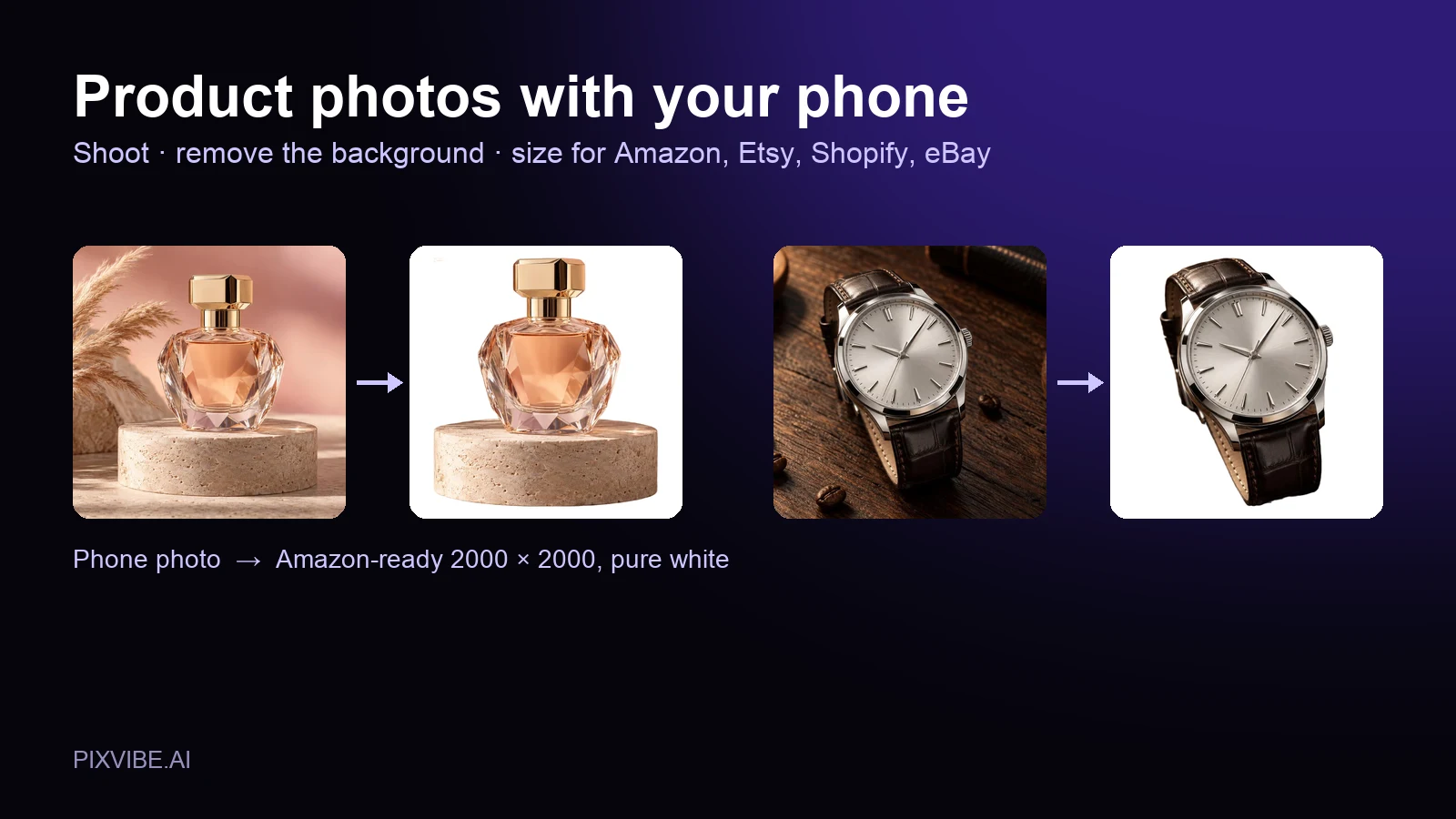
A perfume bottle and a watch photographed on a phone, each turned into a 2000 × 2000 product photo on a pure white background
Guide

Product Photos With Your Phone: Amazon, Etsy & Shopify Sizes

Shoot product photos on a phone, remove the background, and size them for Amazon, Etsy, Shopify and eBay. Official rules in one table.

Read article
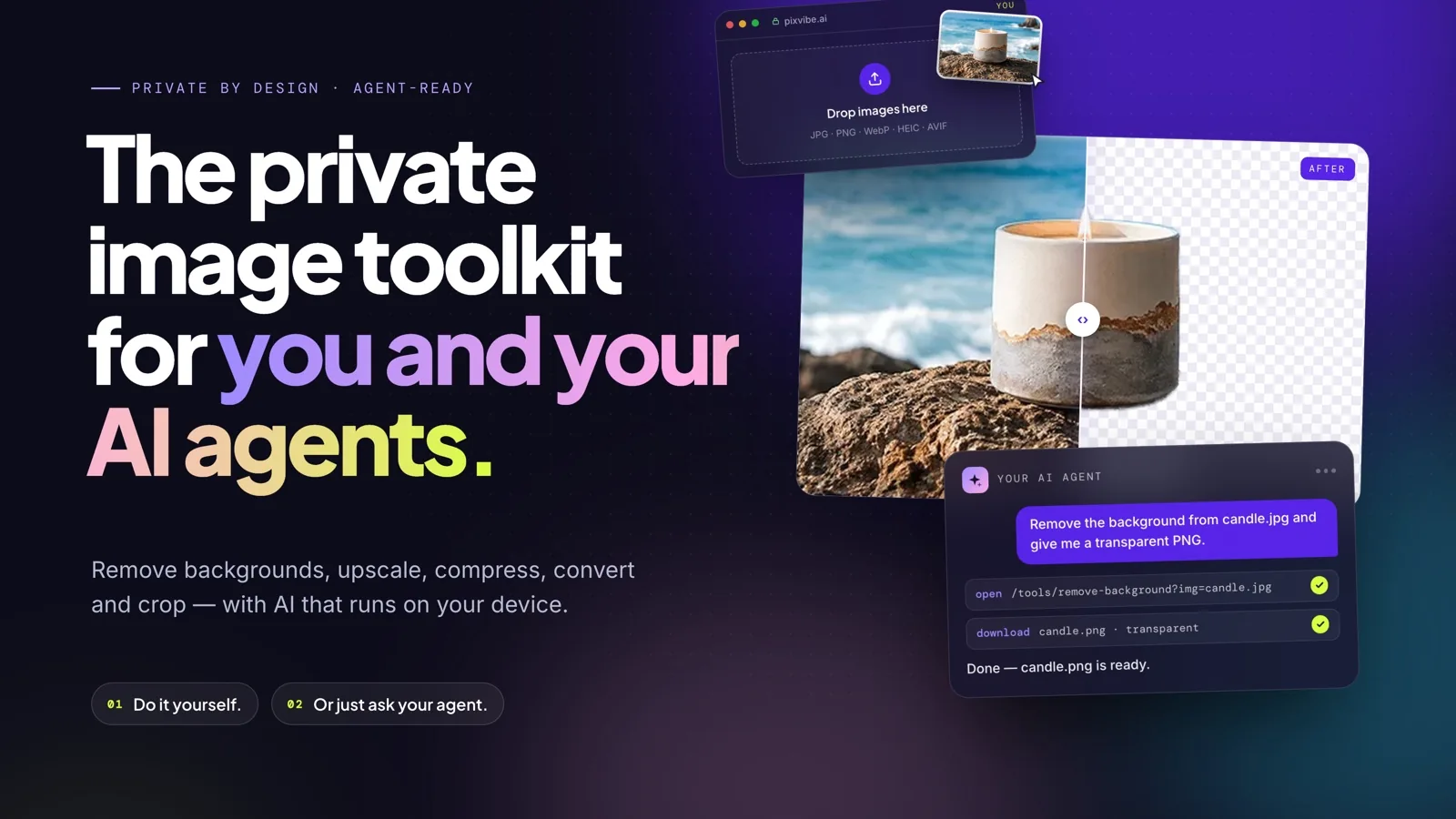
PixVibe, the private image toolkit for you and your AI agents: an agent opens a link and downloads a transparent candle cutout
Guide

How to Let Your AI Agent Edit Images with PixVibe

Let an AI agent edit images with PixVibe: one link per job, no API key. We tested Claude, Codex and ChatGPT agent, and show what to check.

Read article
MORE TOOLS

Explore more tools

Free image tools

Free · In-browser processing

Remove BackgroundRemove BackgroundMake any image transparent — free PNG.Image ConverterImage ConverterHEIC to JPG, WebP to PNG, JPG to WebP & more.PDF to ImagePDF to ImageTurn PDF pages into JPG, PNG or WebP images — pick pages and DPI.Image to PDFImage to PDFCombine JPG, PNG or HEIC photos into one PDF — A4, Letter or fit.Compress PDFCompress PDFShrink scanned and image-heavy PDFs, keep selectable text, or hit a target size in KB.Passport PhotoPassport PhotoFrame your face to passport, visa or ID sizes, change the background and print several on one sheet.Compress ImageCompress ImageReduce image size, keep the quality.Resize ImageResize ImageResize for YouTube thumbnails & any size.Crop ImageCrop ImageCrop and reframe with precision.AI UpscalerAI UpscalerAI upscale image resolution up to 4×.

Free video tools

Free · In-browser processing

Compress VideoCompress VideoShrink a video to a set file size, in your browser.

Pro tools

Server AI · Uses credits

AI Background Remover HDAI Background Remover HDHigh-precision edges for hair, fur and fine detail.HD Image ConverterHD Image ConverterAI upscale, then convert to high-res WebP, PNG or JPG.AI Image EnhancerAI Image EnhancerEnhance and upscale photos with multiple AI models.
All Compress Image optionsUse this tool with an AI agent

Tags on this page

Media
Image›
Pricing
Free›
Runs on
Local · no upload›
Task
Compress›
Format
WebP›
Platform
Websites›
Use case
Logos & icons›Product photos›
For
Online sellers›Designers›
Feature
Transparent background›Target file size›Batch processing›No upload›