A .heif from a phone, app or editor
Not every HEIF file ends in .heic. Once converted, the JPG copy opens in any gallery, browser or office program.
This HEIF to JPG converter turns .heif files into JPGs that any viewer, website or form can open. HEIF is the container format, and a .heic file is that same container holding HEVC-coded pictures, so both endings go through one decoder here. The output is set to JPG from the start, and every file is decoded and converted inside your browser without being uploaded.
Both endings are read by the same libheif decoder in the page. Our test photo gave a byte-for-byte identical JPG as .heic, as .heif and with mif1 as its main brand.
Tiled photos are stitched into one picture and any rotation flag is applied before the JPG is written, so nothing arrives cropped or lying on its side.
Fast saves at JPG quality 90 (out of 100). Compact uses 58 and was the only mode that came out lighter than the HEIF in our tests; Quality uses 95. A slider covers 10 to 100.
One file converts without an account. A free sign-in lets you add up to 20 and save every JPG in a single ZIP.
| Inside the .heif | What it is | In the JPG |
|---|---|---|
| A single photo | The everyday case | That photo, full size |
| Tiles | One photo stored as a grid of pieces (ours: six 512 × 512 tiles) | Joined back into one 1536 × 1024 picture |
| Thumbnail | A small preview kept next to the photo (ours: 320 × 212) | Skipped: the full-size photo comes out |
| Rotation flag | A note telling viewers to turn the picture | Applied: our photo came out upright, 1024 × 1536 |
| A second picture | Another image stored in the same file | Not exported: only the first picture becomes a JPG |
Not every HEIF file ends in .heic. Once converted, the JPG copy opens in any gallery, browser or office program.
Upload forms that name JPG and PNG as accepted types turn a .heif away. Convert it first and the picture goes through.
Windows 10 opens HEIF only after an extra codec is added. A JPG needs nothing, and this page decodes HEIF on its own.
Choose them or drop them into the box; a single file converts at once. With a free account, line up as many as 20 and start them with “Convert all”.
Compact gives the smallest JPG, Quality keeps the most detail. After switching, press “Convert again”.
Download the JPGs one at a time or bundled in one ZIP.
Not for this converter. The Library of Congress description of HEIF (fdd000525, checked 13 November 2026) treats HEIF as a container and notes that “.heif is used for one or more single images”. Its entry on HEIC (fdd000526) covers HEIF files whose pictures use HEVC compression. Inside the file, a main brand code near the start names the type: heic for these HEVC files, while mif1 is a general HEIF brand that many files list as well.
We saved one 1536 × 1024 photo as HEIF and made three copies: one named .heic, one named .heif, and one named .heif with its main brand changed from heic to mif1. All three became the same 415.7 KB JPG, identical down to the last byte. So there is no need to rename a .heif before converting it.
You get one JPG. A HEIF file can carry several images; the Library of Congress HEIC entry says it “may also hold a collection of images with no implied order”. This page converts only the first full-size picture stored in the file; thumbnails and the tiles of one photo don't count as separate pictures. A photo app may show a different picture as the main one, so the JPG might not be the picture you see there.
In our test, a .heif holding a 1536 × 1024 photo plus a second 800 × 534 photo gave a single 1536 × 1024 JPG. We then marked the second photo as the file's main image, and the result was still the first one. A file with a built-in 320 × 212 preview gave the full-size photo, the same JPG as that photo saved without a preview. This page cannot pick the other pictures yet. We ran every test on this page in Chrome with HEVC-coded HEIF photos saved by macOS; other browsers and other HEIF encodings were not tested.
On the default setting, noticeably. We converted four 1536 × 1024 photos saved as HEIF with the encoder built into macOS, between 147.8 KB and 296.8 KB each. Fast made them 40% to 64% larger. Compact made every one smaller, by 34% to 43%. Quality roughly doubled them, 82% to 119% larger.
One example: a 296.8 KB photo of a bag came out at 415.7 KB on Fast, 183.1 KB on Compact and 579.5 KB on Quality. All four got smaller on Compact, so pick it when the JPG must weigh less than the original, and save Quality for pictures you will edit or print.
Drop the .heif file into the tool above. JPG and Fast are preselected, so the JPG shows up without another click. Press Download to keep it.
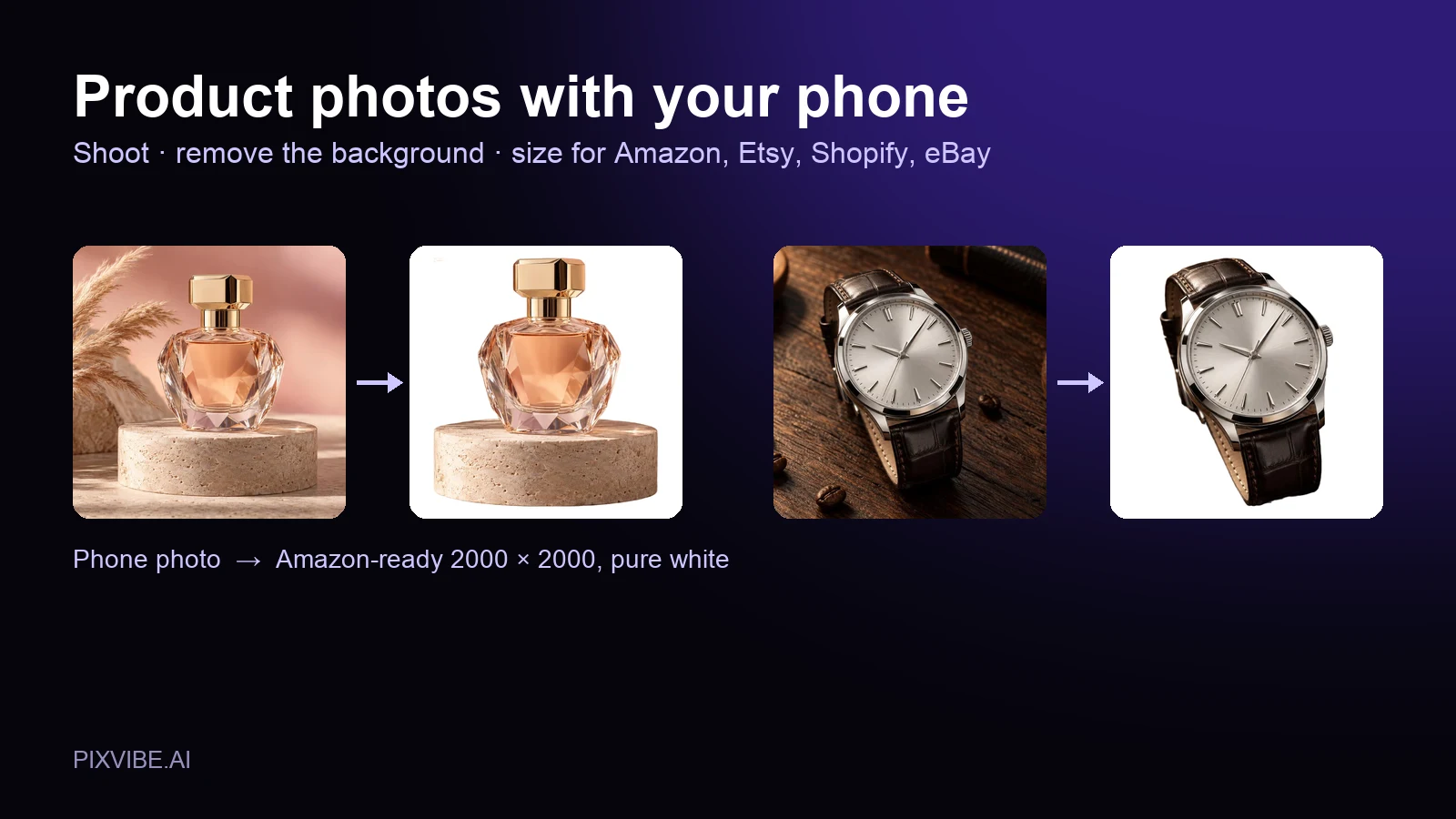
Shoot product photos on a phone, remove the background, and size them for Amazon, Etsy, Shopify and eBay. Official rules in one table.
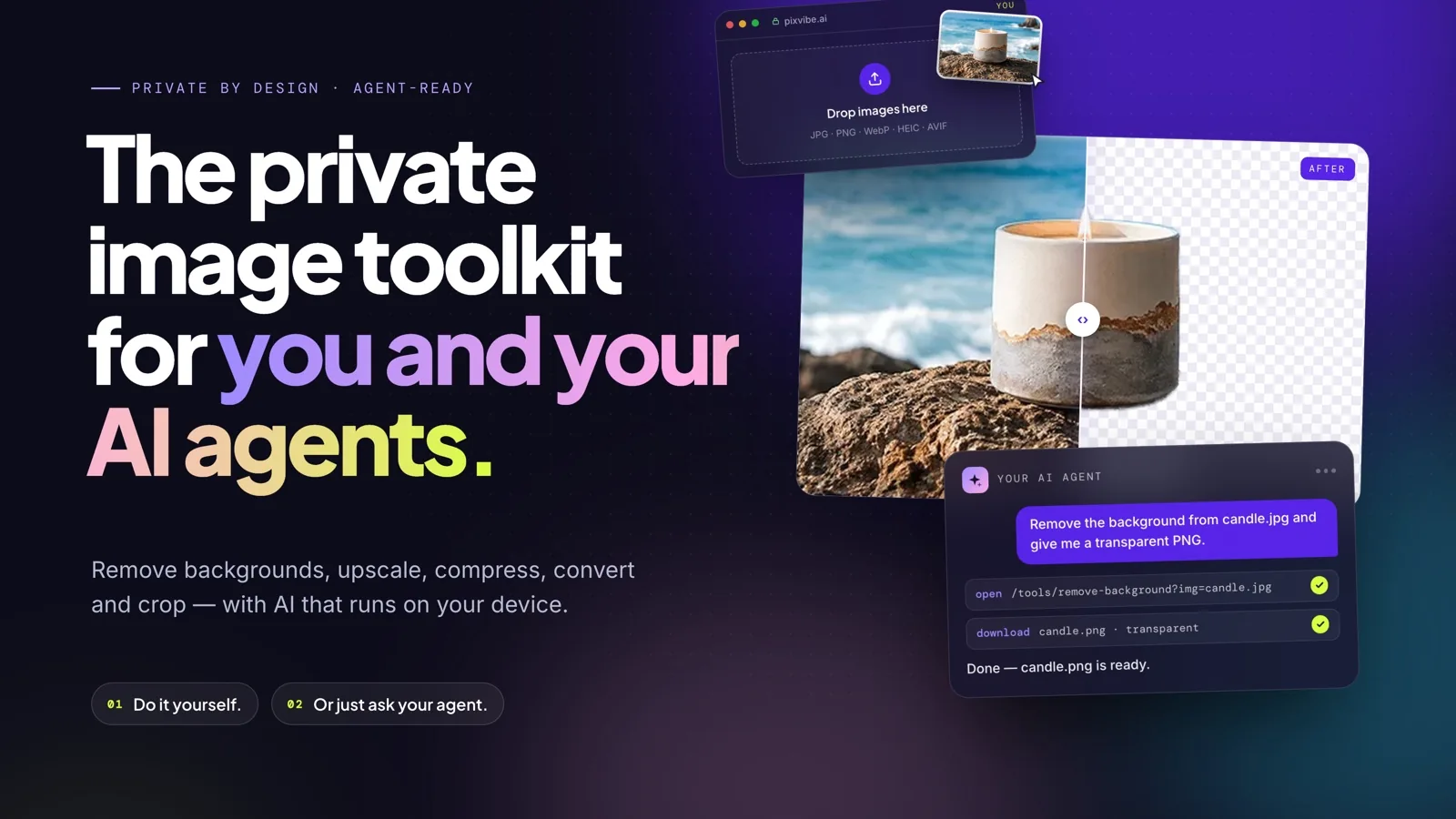
Let an AI agent edit images with PixVibe: one link per job, no API key. We tested Claude, Codex and ChatGPT agent, and show what to check.
Free · In-browser processing
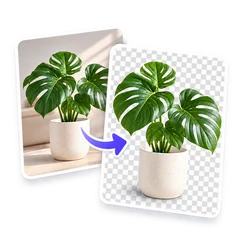 Remove BackgroundMake any image transparent — free PNG.
 Image ConverterHEIC to JPG, WebP to PNG, JPG to WebP & more.
 PDF to ImageTurn PDF pages into JPG, PNG or WebP images — pick pages and DPI.
 Image to PDFCombine JPG, PNG or HEIC photos into one PDF — A4, Letter or fit.
 Compress PDFShrink scanned and image-heavy PDFs, keep selectable text, or hit a target size in KB.
 Passport PhotoFrame your face to passport, visa or ID sizes, change the background and print several on one sheet.
 Compress ImageReduce image size, keep the quality.
 Resize ImageResize for YouTube thumbnails & any size.
 Crop ImageCrop and reframe with precision.
 AI UpscalerAI upscale image resolution up to 4×.
Free · In-browser processing
Server AI · Uses credits