How to Convert HEIC to JPG on iPhone, Windows and Mac
Convert HEIC to JPG on iPhone, Mac or Windows, or in your browser without uploading. Real test: what each JPG quality does to file size.
You email an iPhone photo to a coworker on Windows, and the attachment won't open. A shop's upload form rejects your file. Amazon's list of accepted image formats has no HEIC on it. The photo is fine; the format is the problem. This guide shows how to convert HEIC to JPG on iPhone, Mac and Windows, and in a browser on any device, with a real test of what the conversion does to file size.
One opinion up front: do not convert HEIC photos you only keep on Apple devices. HEIC stores the same photo in a smaller file than JPG. Convert the copies you send to places that cannot open HEIC, and keep the originals.
Why iPhone photos are HEIC
HEIC is the file extension for photos saved in HEIF, the High Efficiency Image File Format. Apple added HEIF support in iOS 11 and macOS High Sierra. When the camera format is set to High Efficiency, the iPhone saves new photos as .heic files. JPG is older and less efficient, but nearly every app, website and operating system opens it without extra software.
1. On iPhone: change what the camera saves
Switch new photos to JPG. Open Settings, tap Camera, tap Formats, then tap Most Compatible. From then on the camera saves photos as JPEG. Photos you already took stay HEIC, and new photos take more storage.
Let the iPhone convert when you copy photos to a computer. Apple says photos imported from an iPhone to a Mac or PC can be converted to JPEG during the transfer. The Keep Originals option in Settings > Apps > Photos turns this conversion off, so check that it is not selected when you want JPG files on the computer.
Sharing can convert too. When you send a photo by AirDrop, Messages or email to a device that does not support HEIF, Apple says the photo can arrive in a more compatible format such as JPEG. Photos shared through iCloud Photos keep their original format.
2. On a Mac: export from Preview
Preview, the image viewer built into macOS, converts HEIC to JPG without any download. Open the photo in Preview, choose File > Export, pick JPEG in the Format menu, and click Save.
To convert several photos at once, open them together in one Preview window, select all of them in the sidebar, and use the same File > Export steps.
3. On Windows: install two extensions
Windows does not open HEIC photos on its own. According to the Microsoft Store, the HEIF Image Extension lets Windows read and write HEIF files, and the HEVC Video Extensions package must also be installed to view images stored in .heic files. After both are installed, Windows apps can open .heic files, and you can save a copy as JPEG from an editor such as Paint.
That route is fine on your own PC. On a work computer where you cannot install apps from the Microsoft Store, or when you have dozens of photos to convert, a browser converter is faster.
4. In your browser: convert HEIC to JPG without uploading
PixVibe's HEIC to JPG converter works on Windows, Mac, Chromebook, iPhone and Android, with nothing to install:
- Open the image converter and drop your HEIC photos on it. One photo needs no account; sign in with a free account to convert up to 20 photos at a time.
- Leave Output format on Smart pick. Smart pick turns HEIC into JPG automatically. A single photo converts as soon as it is added; with several photos, click Convert all.
- Download each JPG, or click Download all (ZIP).
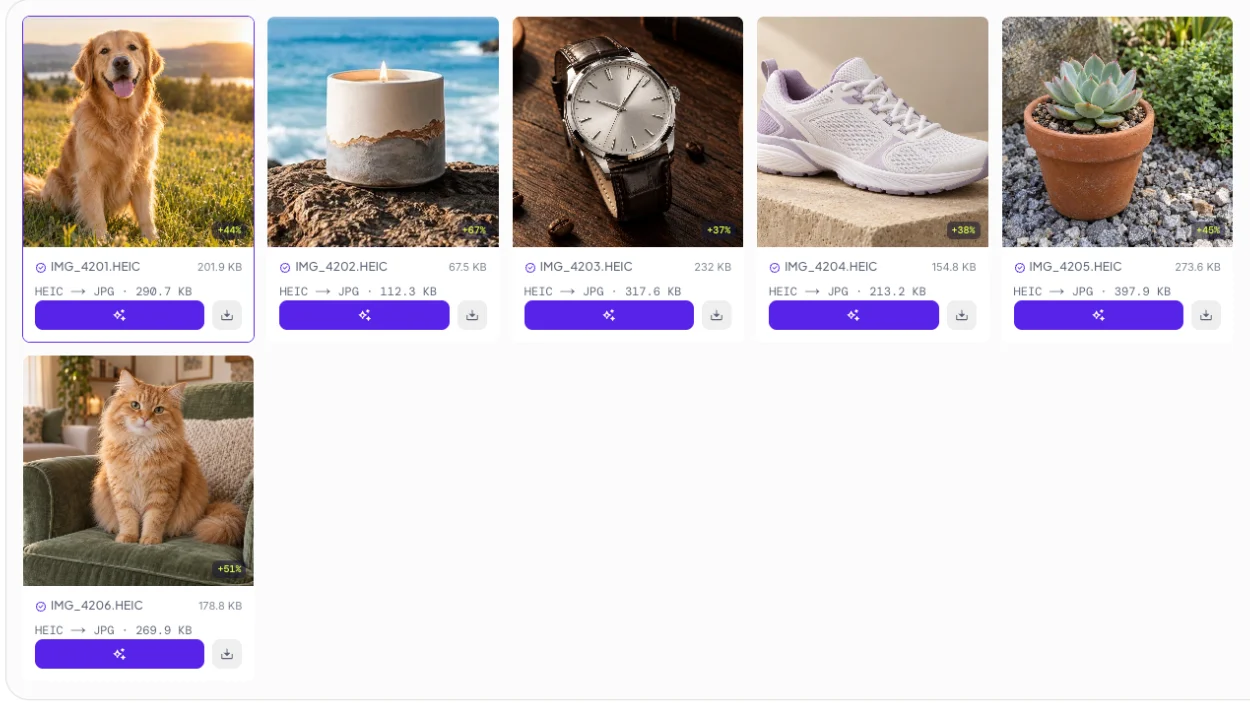
The photos do not leave your device. The converter decodes HEIC with libheif compiled to WebAssembly, and the decoder (about 3 MB) downloads only when you add a HEIC file. The badge in the corner of the page counts files uploaded during the visit; it stays at 0 files uploaded. The local processing page explains how to check this with your browser's developer tools. Each file can be up to 100 MB.
Fast, Compact or Quality: what happens to file size
JPG compresses photos less efficiently than HEIC, so converting at high quality makes files bigger. We converted six HEIC photos (1536 × 1024 pixels, 1.08 MB in total) in two modes:
| Mode | JPG quality | Total size | Compared with HEIC |
|---|---|---|---|
| Fast (default) | 90 | 1.56 MB | 44% larger |
| Compact | 58 | 654 KB | 40% smaller |
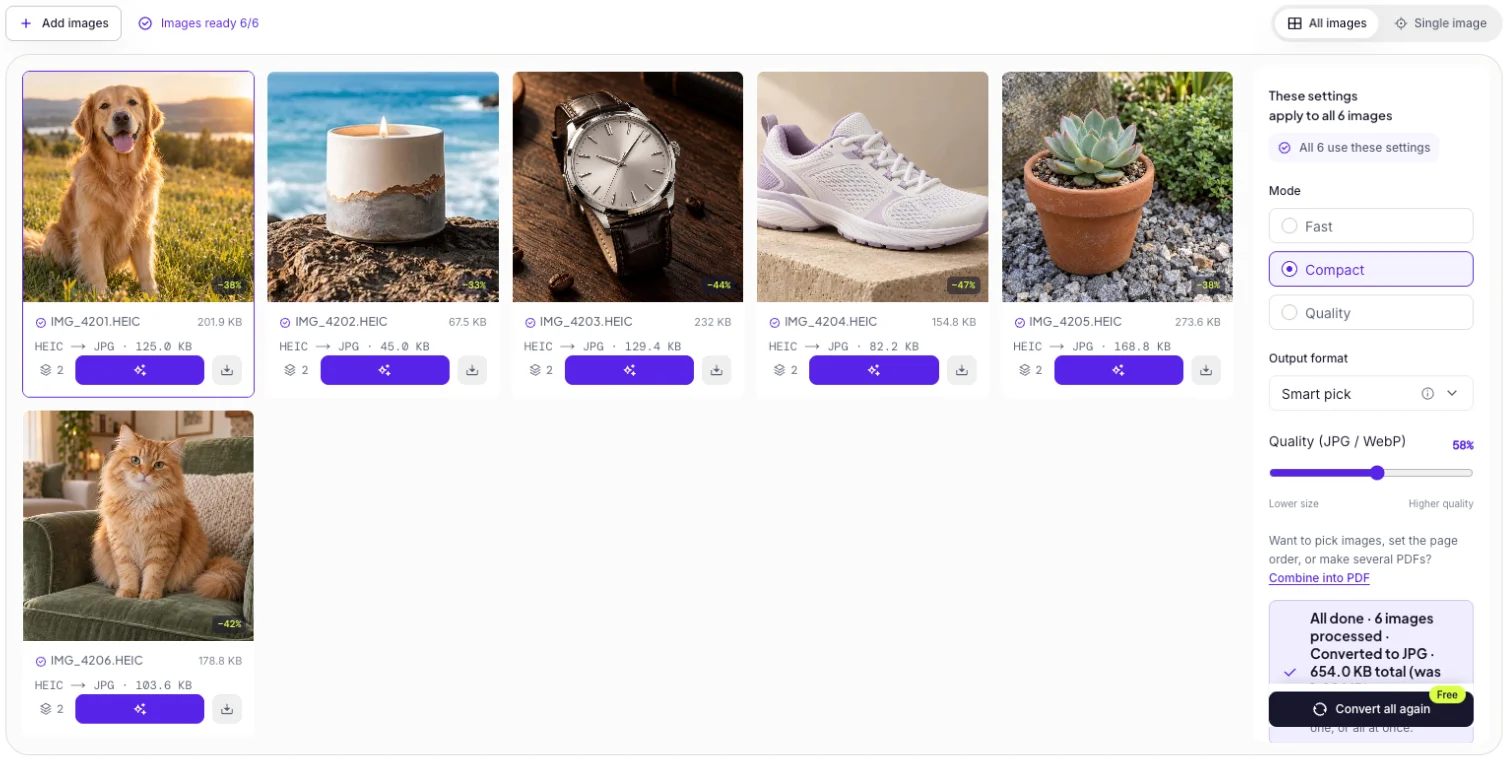
Pick Fast for photos you send to people and apps. Pick Compact when a form limits file size or you want the JPG smaller than the HEIC. Compact and Quality use the mozjpeg encoder; Fast uses the browser's built-in encoder. Pick Quality (JPG quality 95) for photos you will print or edit again. The quality slider goes from 10 to 100 if you want to set it yourself; to hit an exact size in KB, run the JPGs through the image compressor afterwards.
What the JPG keeps and what it drops
Rotation is applied. The converter saves the pixels upright, so the JPG shows the right way up even in apps that ignore rotation tags.
Location and camera data are removed. The converter redraws each photo before encoding it, so EXIF data such as GPS location, camera model and capture time is not copied into the JPG. That is useful when you post photos publicly; keep the HEIC original if you need the date and place later.
Which method to use
| Situation | Method |
|---|---|
| You want every new photo as JPG | iPhone: Settings > Camera > Formats > Most Compatible |
| A few photos on a Mac | Preview: File > Export > JPEG |
| Your own Windows PC, occasional photos | HEIF Image Extension + HEVC Video Extensions, then save as JPEG |
| A batch, a shared or work computer, or a phone | A browser converter such as PixVibe |
| You need PNG instead of JPG | Convert HEIC to PNG |
Converting for a marketplace? Amazon accepts JPEG, TIFF, PNG and non-animated GIF, but not HEIC; the guide to product photos with your phone lists each marketplace's formats and sizes. To turn other formats such as PNG, WebP or AVIF into JPG, use the JPG converter.