Inicio

Planes

Blog

Herramientas de imagen gratuitas

Gratis · Procesamiento en el navegador

Quitar fondoPNG transparente en segundos.Convertidor de imágenesCambia el formato de tus imágenes.PDF a imagenConvierte páginas PDF a JPG, PNG y más.Imagen a PDFCombina imágenes en un solo PDF.Comprimir PDFReduce el tamaño de un PDF, incluso a un peso exacto.Foto para documentoFotos de pasaporte y carnet al tamaño correcto, listas para imprimir.Comprimir imagenArchivos ligeros, imágenes nítidas.Redimensionar imagenTamaños exactos para cada plataforma.Recortar imagenEncuadra tu imagen a tu gusto.Ampliar con IAAmplía imágenes hasta 4×.

Herramientas de video gratuitas

Gratis · Procesamiento en el navegador

Comprimir videoReduce un video a un tamaño de archivo concreto, en tu navegador.

Herramientas Pro

IA en el servidor · Usa créditos

Quitar fondo con IA HDPrecisión en cabello y bordes finos.Conversor de imágenes HDAmplía y convierte en HD.Mejorador de imágenes con IAMejora los detalles con IA avanzada.
Ver todas las herramientas
PixVibe
Inicio

Herramientas de imagen gratuitas

Gratis · Procesamiento en el navegador

Quitar fondoPNG transparente en segundos.Convertidor de imágenesCambia el formato de tus imágenes.PDF a imagenConvierte páginas PDF a JPG, PNG y más.Imagen a PDFCombina imágenes en un solo PDF.Comprimir PDFReduce el tamaño de un PDF, incluso a un peso exacto.Foto para documentoFotos de pasaporte y carnet al tamaño correcto, listas para imprimir.Comprimir imagenArchivos ligeros, imágenes nítidas.Redimensionar imagenTamaños exactos para cada plataforma.Recortar imagenEncuadra tu imagen a tu gusto.Ampliar con IAAmplía imágenes hasta 4×.

Herramientas de video gratuitas

Gratis · Procesamiento en el navegador

Comprimir videoReduce un video a un tamaño de archivo concreto, en tu navegador.

Herramientas Pro

IA en el servidor · Usa créditos

Quitar fondo con IA HDPrecisión en cabello y bordes finos.Conversor de imágenes HDAmplía y convierte en HD.Mejorador de imágenes con IAMejora los detalles con IA avanzada.
Ver todas las herramientas
PlanesBlog
PixVibe

Herramientas de imagen con IA gratis: quita fondos, convierte, comprime, redimensiona y amplía en segundos.

Producto

Quitar fondoConvertidor de imágenesPDF a imagenImagen a PDFComprimir PDFFoto para documentoComprimir imagenRedimensionar imagenRecortar imagenAmpliar con IAComprimir videoPlanes

Herramientas Pro

Quitar fondo con IA HDConversor de imágenes HDMejorador de imágenes con IA

Recursos

HerramientasBlogPara agentes de IACómo tus archivos no salen del dispositivoPrompts de fuentes con IA

Legal

Términos del servicioPolítica de privacidadAviso legalLicencias de tercerosContacto

© 2026 PixVibe. Todos los derechos reservados.Un producto de Funovate Technology

Notificaciones

Aún no hay notificaciones

Te avisaremos cuando ocurra algo importante.

InicioBlogGuía
Guía
7 oct 20266 min de lectura

How to Upscale an Image to 4K Without Losing Quality

Upscale an image to 4K (3840 × 2160) without losing quality: what AI can and can’t recover, free vs Pro tools, and a real 4× test.

PV
Equipo de PixVibeHerramientas para el momento entre la idea y el resultado.

No upscaler can recover detail your camera never captured. So when you upscale an image to 4K without losing quality, the real question is what fills the missing pixels. The two families of AI upscalers answer it very differently, and picking the wrong one is the most common mistake.

This guide covers what 4K means in pixels, why plain resizing looks soft, a free way to do it in your browser, and a side-by-side test of a pixel-faithful model and a generative one on the same 960 × 540 image.

What 4K means in pixels

For screens and images, 4K almost always means 3840 × 2160, the UHD format defined in ITU-R Rec. 2020 (Wikipedia — 4K resolution). Digital cinema uses a wider 4096 × 2160, called DCI 4K. How far you need to scale depends on where you start:

Your imageScale to reach 3840 × 2160
960 × 5404×
1280 × 7203×
1920 × 10802×
3840 × 2160Already 4K

If the factor is not a clean 2× or 4×, set the size instead. The free image upscaler takes an exact width or height, such as 3840 px, and scales to it.

Why stretching an image to 4K makes it blurry

Ordinary resizing, the "bicubic" option in most editors, computes each new pixel from the 16 pixels around it (Wikipedia — Bicubic interpolation). It averages. It cannot draw an edge that is not already there, so a 4× enlargement comes out soft.

AI upscalers are trained on pairs of low- and high-resolution images. Instead of averaging, they predict the missing detail.

The same shoe-lace patch enlarged 4× with bicubic, free ESRGAN and Real-ESRGAN
The same 150 × 100 px patch of a 960 × 540 product photo, enlarged 4×. Bicubic stays soft; the free in-browser ESRGAN sharpens the lace edges; Real-ESRGAN gives the cleanest edges but also flattens the suede texture.

How to upscale an image to 4K for free

  1. Open the free AI upscaler and drop in a PNG, JPG, WebP or HEIC image.
  2. Choose 4×, or type 3840 as the width.
  3. Pick PNG as the output format and download.

The model runs on your own device. PixVibe uses ESRGAN models converted to TensorFlow.js for the browser (UpscalerJS — ESRGAN Slim), so the image is never uploaded. Two trade-offs come with that. Large outputs need a lot of memory, so the tool caps the long edge at 8,000 px on desktop and 3,000 px on phones unless you confirm. And for noisy or old photos, the Restore mode runs Real-ESRGAN's general model, realesr-general-x4v3, which its authors describe as a small model for general scenes (GitHub — xinntao/Real-ESRGAN).

Pixel-faithful vs generative upscaling

This choice decides what your 4K image looks like.

Pixel-faithful models such as Real-ESRGAN enlarge what is in the image and clean up blur, noise and compression artifacts. Real-ESRGAN was trained on synthetic "high-order" degradations so it copes with messy real-world photos (Wang et al., 2021 — Real-ESRGAN, arXiv:2107.10833). It does not add objects or lettering.

Generative models such as Seedream and GPT-Image redraw the image at the new size. The result looks sharp. The detail is the model's guess.
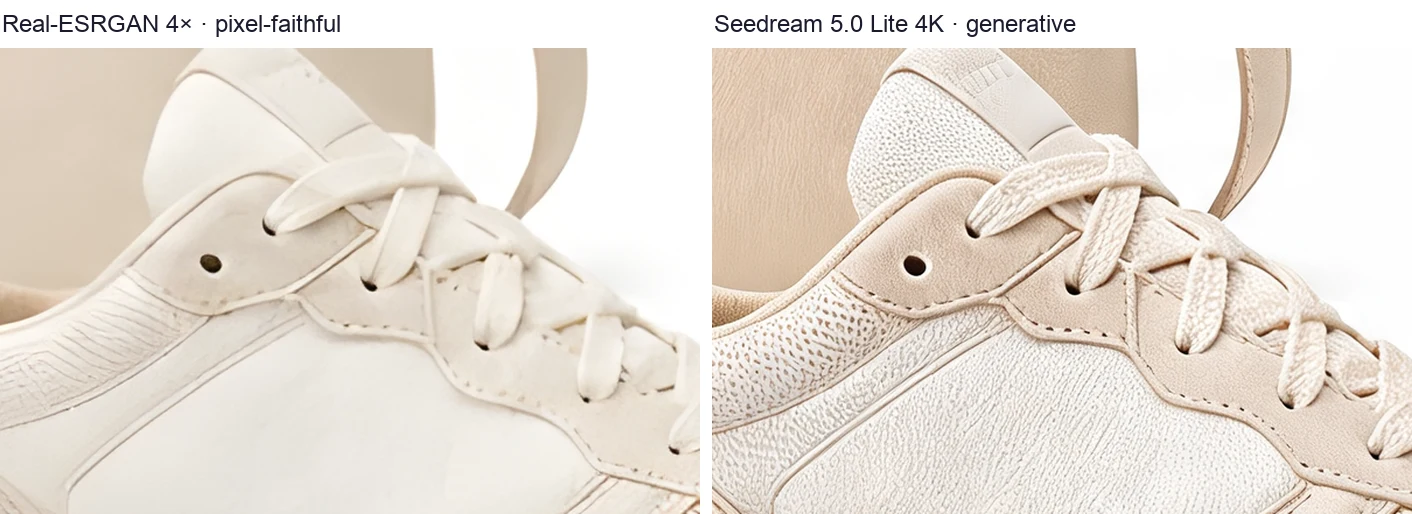
Real-ESRGAN versus Seedream 5.0 Lite on the same sneaker patch
One run of each model on the same patch. Seedream 5.0 Lite (right) added suede grain, perforations and a tab on the tongue that the 960 × 540 source does not show.
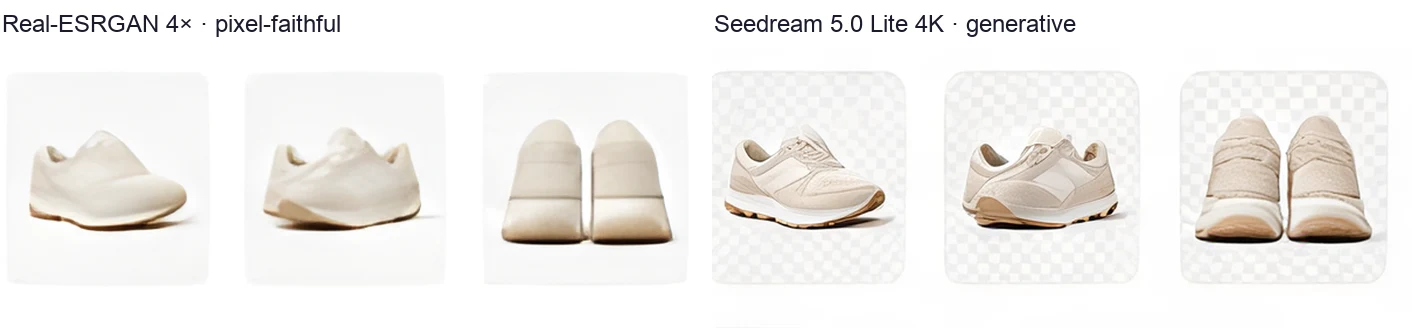
Tiny product thumbnails upscaled by Real-ESRGAN and by Seedream 5.0 Lite
Thumbnails about 60 px wide in the source. Real-ESRGAN kept their rough shapes and smoothed away the transparency checkerboard; Seedream 5.0 Lite redrew them as detailed sneakers.

Our rule: if the image is a record, use pixel-faithful. That covers a product you sell, a screenshot, a document, or a face that has to stay the same person. If it is a mood image you will judge by eye, generative often looks better. The comparison above is one image and one run per model, not a ranking.

Upscale to 4K with the AI Image Enhancer

The AI image enhancer runs both kinds on our servers: Real-ESRGAN at 2× or 4×, plus six generative models whose maximum output is 2K, 4K or UHD depending on the model.

  1. Upload your image.
  2. Tick one or more models and set the output size for each. Several models run on the same image and the results appear side by side.
  3. Check the credit price on the button, start, then compare and download.
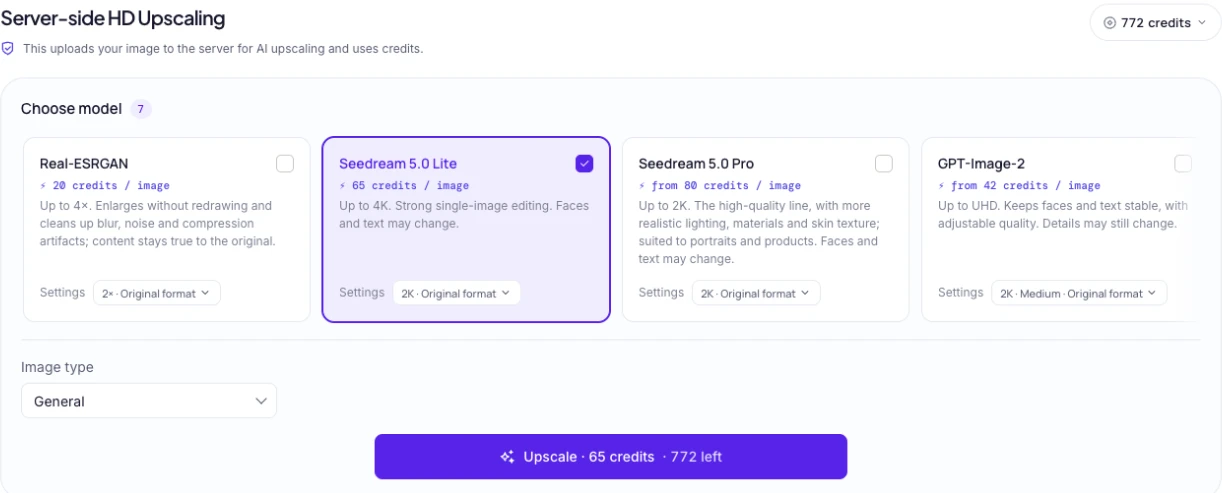
Model picker in the PixVibe AI Image Enhancer
Each model card shows its maximum output and credit price before you start.

Uploaded images and results are deleted within 24 hours (privacy policy). If you also need a different file format, the HD image converter upscales with Real-ESRGAN and converts to WebP, PNG or JPG in one step.

Tips for a clean 4K result

  • Start from the best original. A JPEG that has been re-saved several times carries block artifacts, and the upscaler enlarges those too.
  • Save as PNG. PNG compression is lossless (Wikipedia — PNG); saving the 4K result as JPEG adds another round of lossy compression.
  • Check at 100% zoom. Look at faces, lettering and fine patterns before you publish. That is where generative models change things.
  • Upscale last. Crop, color-correct and retouch at the original size, then upscale once.

Try it

Start with the free upscaler. If the result is still soft, run the same image through the AI Image Enhancer and compare a pixel-faithful model with a generative one side by side.
Preguntas frecuentes

You can upscale an image to 4K without visible blur, but no tool recovers detail the camera never captured. Pixel-faithful models such as Real-ESRGAN sharpen what is there; generative models add new detail that may differ from the original.

For screens and images, 4K UHD is 3840 × 2160 (ITU-R Rec. 2020). 4096 × 2160 is DCI 4K, used in digital cinema.

Generative models can: they redraw the image, so faces and lettering may come out different. Pixel-faithful models like Real-ESRGAN do not redraw content, though their denoising can smooth fine texture.

Yes with the free PixVibe image upscaler, which runs in your browser. The AI Image Enhancer’s server-side models use credits, and each model shows its price before you start.

Etiquetas
Impresión›Fotos antiguas y de baja resolución›

Añade PixVibe como fuente preferida en Google

EN ESTA PÁGINA

What 4K means in pixelsWhy stretching an image to 4K makes it blurryHow to upscale an image to 4K for freePixel-faithful vs generative upscalingUpscale to 4K with the AI Image EnhancerTips for a clean 4K resultTry it

Las buenas herramientas deberían sentirse invisibles

PixVibe mantiene simple la edición diaria de imágenes: las herramientas gratis funcionan en tu navegador.

Explorar todas las herramientas

Herramientas para esto

Ampliar con IA

Ampliar con IA

Amplía la resolución hasta 4× con IA.

Abrir herramienta
Mejorador de imágenes con IAPRO

Mejorador de imágenes con IA

Mejora y amplía fotos con varios modelos de IA.

IA en servidor · usa créditosDesde 20 créditos
Abrir herramienta
Conversor de imágenes HDPRO

Conversor de imágenes HD

Amplía con IA y convierte a WebP, PNG o JPG en alta resolución.

IA en servidor · usa créditosDesde 20 créditos
Abrir herramienta

Artículos relacionados

PixVibe, la caja de herramientas de imagen privada para ti y tus agentes de IA: un agente abre un enlace y descarga una vela recortada
Guía

Cómo dejar que tu agente de IA edite imágenes con PixVibe

Deja que un agente de IA edite imágenes con PixVibe: un enlace por trabajo, sin clave de API. Probamos Claude, Codex y ChatGPT agent.

Leer artículo
Volver a todos los artículosMejorador de imágenes con IA